Slack Workflow Builder or an AI agent: which recurring job goes where
You built a few flows in Slack Workflow Builder: a request form, a welcome message, a Monday post. Now you want the next recurring job, say a weekly list of unpaid invoices or of deals with no next step, and the flow has no way to read your accounting tool or your CRM. The usual next moves are to stack separate workflows to fake branching, or to hire a coordinator to do the lookups by hand. This guide sorts a small firm's recurring jobs into three piles, using Slack's own help pages: keep it in Workflow Builder, give it to an agent, or leave it with a person. It ends with a rule for when a job should move.
The short answer: three piles and one rule
Sort every recurring job by what it needs.
- Workflow Builder takes jobs with a fixed shape: a form, a message, a schedule, a choice between a few paths. Slack says workflows built to start on a schedule start automatically, and you can build one from a template.
- An agent takes jobs that need to read data from a tool Workflow Builder cannot reach, or to put several records together before anyone looks.
- A person keeps decisions about money, wording to a client, and exceptions.
One rule makes the sort quick. Decide by whether your system of record is on Slack's connector list, not by whether the job sounds simple or complex. A "simple" weekly unpaid-invoice list still cannot live in Workflow Builder if your books are in QuickBooks or Xero, because Slack's connector list does not include either. A "complex" form-and-approval flow can stay, because the work happens inside Slack.
Why people pick the wrong tool
A common line is "use Workflow Builder for simple tasks and an agent for hard ones". It is nearly useless, because it does not tell a ten-person firm which of its own jobs is which. It also hides two facts that change the answer: what Slack says your plan allows, and what your tools are.
Vendor posts add noise. One vendor's write-up of its own team's experience says that Workflow Builder "doesn't branch" and describes a team that built 14 separate workflows to cover what one branching workflow should have handled. That is an author report from Cotera, which sells AI agents, so it describes a real frustration and measures nothing. The same post says the tool "can't pull" data from outside systems and has no memory of previous triggers. Slack's own pages show that the branching claim is out of date for some plans. The next section checks the other limits against Slack.
What Workflow Builder does on Slack's own pages
Four facts from Slack's help center set the boundary. Check them against your own plan before you build anything.
- Plan. Slack lists Workflow Builder as available on paid plans. By default, all Full Members can create workflows, and members and guests can use them.
- Branches. Slack's page on adding a branch to a workflow says your workspace must be on the new version of Business+ to use branches. You can add up to 15 branches, and nest up to 5 additional branches beneath a primary branch. Nesting branches below nested branches is not supported.
- Connectors. Connector steps carry out an action in a third-party service. They require you to authenticate your account with that service and may need additional approval or configuration first. The connector list includes Salesforce, Google Sheets, Google Mail, Zendesk, Intercom, Jira Cloud, Linear, Notion, Airtable and Box. On the day this was checked it did not include HubSpot, Pipedrive, QuickBooks, Xero or Stripe.
- AI steps. Slack's page on using AI in workflows says AI steps are available on the new version of Business+ and Enterprise+, or on Pro, Business+ and Enterprise Grid with the legacy Slack AI add-on. The AI answer step cannot be added to workflows in Salesforce channels or channels with external people, and an AI agent conversation step must be the last step in a workflow.
Two of these change the answer for most small firms. Treat the claim that Workflow Builder cannot branch as a plan question: branches exist, but only on the new version of Business+. If you are on Pro, the vendor claim is accurate for you, and your choice is really "upgrade the Slack plan, stack workflows, or move the job". If you are on Business+, a branching flow that routes a request by the severity someone picks on a form is a Workflow Builder job, and it should stay there.
The second is the connector gap, which is the usual reason a small firm outgrows the tool. If the numbers you need live in QuickBooks, Xero, HubSpot, Pipedrive or Stripe, no connector step on Slack's list reads them.
The decision table
The jobs below are examples of what a founder or operations generalist at a small Slack-first firm typically owns. They are illustrative, not survey data. The "where" column assumes a paid Slack plan and a tool stack of QuickBooks or Xero for the books and HubSpot or Pipedrive for deals.
| Recurring job | Where it goes | Reason from the sources |
|---|---|---|
| Time-off or equipment request form that posts to one channel | Workflow Builder | Fixed shape, all inside Slack |
| Welcome message when someone joins a channel | Workflow Builder | A built-in trigger; no outside data |
| Monday scheduled post with fixed text | Workflow Builder | Scheduled workflows start automatically |
| Route a request by the severity picked on a form | Workflow Builder with a branch | Branches take form answers; needs the new Business+ |
| Weekly list of unpaid invoices from QuickBooks or Xero | Agent | Neither is on the connector list |
| Weekly list of deals with no activity this week from HubSpot or Pipedrive | Agent | Neither is on the connector list |
| Weekly row summary from a Google Sheet, Notion database or Airtable base | Either | All three are on the connector list; the agent also reads them with the asking person's own access |
| Payment reminder email to a late client | Agent drafts, person approves | A write to an outside party needs a human click |
| Approve a spend, grant an exception, decide what to tell a disputing client | Person | Judgment and accountability |
The "Either" row shows the tie-breaker. When your data is on both sides, keep the job in Workflow Builder, because a fixed job does not need a model and a scheduled post is easier to read in a workflow list than in an agent job.
What an agent adds, and how it behaves
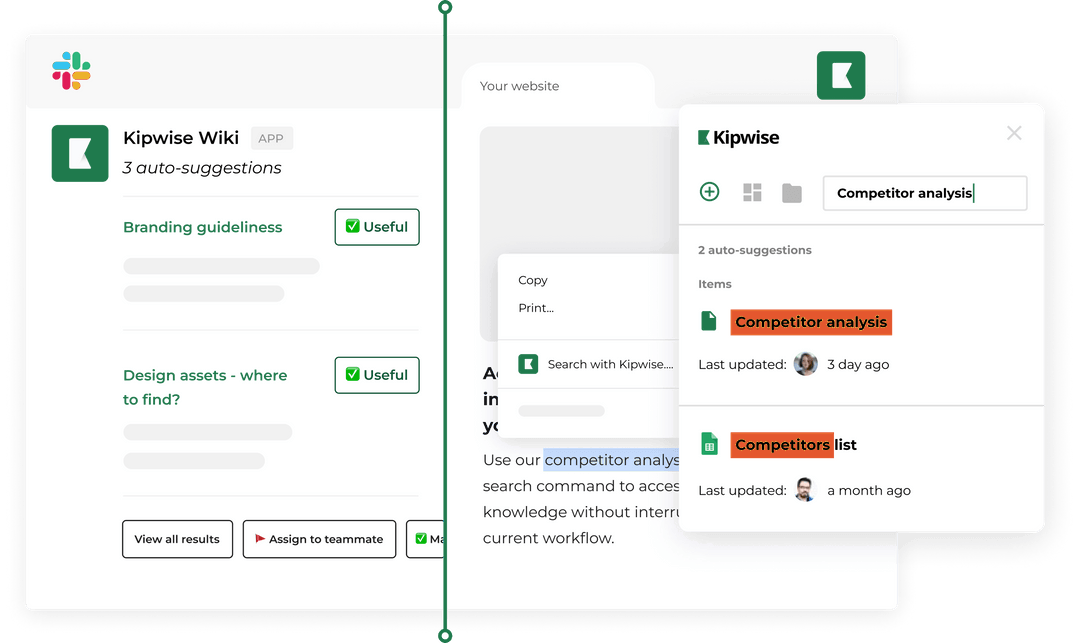
The Kipwise agent works in a Slack thread. You mention it once, and plain replies in the thread continue the conversation. It uses your own access to the tools you connect, and its connection list includes QuickBooks, Xero, HubSpot, Pipedrive, Stripe, Gmail and Google Drive. It says which organisation or company it acted in. That covers the jobs missing from the connector list.
The recurring version works the same way, in plain language. You ask for a weekly Monday check once, approve it once, and it posts the result in the channel using your Slack timezone. A realistic made-up example for a twelve-person services firm:
> In the thread, the owner writes: "Every Monday at 8, list unpaid invoices from QuickBooks with the aged receivables report, list HubSpot deals with no activity this week, and post one list here." > > The agent shows an Approve card for the schedule. The owner presses it. On Monday the list appears in the channel. A later reply in the same thread says "only invoices over $2,000", and the next run follows it.
Aged receivables is one of the reports the agent can run in QuickBooks or Xero. For what to do with the late invoices it lists, see chasing overdue invoices from Slack.
Keep scheduled jobs read-only
Approve a scheduled agent job as a read-only report, so every write it later proposes arrives as a fresh Approve or Deny card instead of running on its own. This is a recommendation, built on how the product works: a scheduled task needs approval once, together with the list of changes it may make on its own, and any other change shows a fresh approval card. Only the person who asked can press the card, and it expires after 30 minutes. A list that posts every Monday is a report. A payment reminder email is a write. Keep them in different jobs, and nobody has to wonder what the report might send.
Handle failure and edge cases
Four things can go wrong, and each has a different owner.
The data is missing or stale. An agent reads what the connected tool holds. If the books were not updated last week, the list is short, and the agent cannot know. Put the date of the last bank reconciliation in the thread, or have a person confirm the books before the Monday list is trusted. The same point is made in more depth in the guide to scheduling recurring agent jobs without silent failures, which separates a job that ran from a result someone received.
The access belongs to a person. The agent uses the asking person's own connections and permissions, the same as a live request from them. Decide who asks for a scheduled job, and write that name in the thread. If that person leaves or loses access to the books, the job stops reading them.
The Workflow Builder side has limits too. The AI answer step cannot be added in Salesforce channels or channels with external people, and a Slack-side AI agent step has to come last. If a flow has to do something after the agent step, it cannot be built that way. Slack's own AI features are a third option for text-shaped jobs inside Slack, such as a summary of a channel, but they do not add the tools listed above.
A person still decides. Approving a bill, agreeing a payment plan or choosing what to say to an unhappy client stays with someone who can answer for it. If the approval is the hard part of a job, the human approval guide shows how to put it on a card without handing it away.
The move rule
Use one rule per job, and write the decision where the team can see it, for example in the channel topic.
- Start every recurring job in Workflow Builder if the data it needs is inside Slack or on the connector list.
- Move it to an agent when it needs a tool that is not on the connector list, or when it has to combine records before anyone looks at them. Do not move it just because it feels important.
- Move it to a person when the result is a decision about money, an outside party or an exception. An agent can prepare the page. Someone presses the button.
- Move it back to Workflow Builder when, after a month, the agent job reads the same fixed thing every week and nobody changes the wording. A fixed job should have the simplest tool.
- Count your stacked workflows. If you have more than two workflows that differ only by one answer, check the plan before building a third: on the new Business+ a single branching flow would do the job.
This also answers the hiring question. A coordinator whose week is mostly lookups across QuickBooks and the CRM is doing pile-two work by hand. The part of the job in pile three, the judgment and the client relationship, is the part worth paying for. The overdue invoice guide linked above walks through that split for one job.
Verify it works
Run each moved job as a two-week pilot before you trust it.
- Compare against the source. For the first two Mondays, open the aged receivables report in QuickBooks or Xero and check the agent's list line by line. Do the same for the HubSpot or Pipedrive deals.
- Read the run history. You can ask the agent to list your jobs and what happened on previous runs, including failures. Check that every Monday has a run and a post.
- Check the card behavior. Ask for one write on purpose, such as a draft reminder, and confirm it waits for the Approve card instead of going out.
- Watch the corrections. If the owner corrects the same thing twice in the thread, change the instruction once and re-approve.
- Keep the Workflow Builder side honest. For each flow, check the workflow's activity view for errors. Slack lists in-progress and completed runs and any errors there.
What to do next
Open your Workflow Builder list today and write each recurring job next to the tool it needs. Mark every job whose tool is not on Slack's connector list. Pick the one that currently costs someone the most Monday time, and run it as the two-week pilot above.
If that job is the unpaid-invoice or no-activity-deal list, the Kipwise agent can run it from one thread once QuickBooks or HubSpot is connected. The Kipwise price is $10 per user per month, or $108 per user per year, with a minimum of 3 users and a trial; see Kipwise pricing for the current trial terms. The QuickBooks agent page and the HubSpot agent page describe those connections. For the "what is it" side of Workflow Builder, with eight example workflows, use the Kipwise help center tutorial.
References
- Guide to Slack Workflow Builder: paid plans, who can build, scheduled workflows start automatically, connector steps and branches.
- Add a branch to a workflow: new Business+ requirement, 15 branches, 5 nested.
- Slack connectors for Workflow Builder: the list of services with connector steps.
- Use AI to build Slack workflows: AI step plan gates and limits.
- Slack Workflow Builder Topped Out at Step 3. Here's Where We Went From There: vendor author report on branching, lookups and memory.
- Slack Workflow Builder: what it is and 8 example workflows: the Kipwise help center tutorial.
- How to Schedule Recurring AI Agent Jobs in Slack Without Silent Failures: separating job success from delivery.
- How to Add Human Approval to AI Agent Workflows in Slack: approval cards for agent actions.
- How to Chase Overdue Invoices from Slack Without Hiring a Bookkeeping VA: the invoice chase example.
- QuickBooks agent integration: the QuickBooks connection.
- HubSpot agent integration: the HubSpot connection.
- Kipwise pricing: agent price and trial.