Google Meet notes for a small team: who can open them, and how the action items get chased in Slack

A client call ends at 3:30. Gemini took Google Meet notes, the document lands in the organizer's Drive, and the organizer gets an email. By Thursday someone asks in Slack, "what did we agree with Acme on pricing?", and nobody else can open the notes, or nobody remembers they exist. The proposal that "someone" promised to send has no name next to it, so it does not go out.
Google Meet notes capture a call well. They leave two problems for a small team afterwards: who can read them, and who does each next step. This guide covers where Meet saves notes and transcripts, who can open them under each setting, which setting to pick for which kind of meeting, and a simple routine for getting every action item an owner in the Slack thread where your team already works.
The short answer
- Before the call, the host picks who receives the notes. For client calls, choose invited guests in your organization unless the client should get them too.
- After the call, the notes and any transcript sit in the organizer's Drive and are attached to the Calendar event. Colleagues who were not invited, or who fall outside the sharing choice, cannot open them.
- The same day, post the decisions and action items in the client or project channel, put one name and one date on each item, and have each owner confirm in the thread.
- Answer later questions ("what did Maria say about the deadline?") from the notes, with a link, not from memory.
Where Google Meet notes and transcripts go
Meet produces two different things, and they behave differently.
Gemini notes. When someone turns on Take notes for me, Meet writes a Google Doc. According to Google's help page for Take notes for me, the document is saved in the organizer's Drive, in a "Google Meet" folder with a sub-folder for each meeting, and it is attached to the Calendar event. The notes have a Summary, Decisions, Next steps and Details, split into a Quick notes tab and a Full notes tab. Google recommends the feature for meetings between 15 minutes and 8 hours, and warns that summaries can be incomplete for shorter calls or when connections drop.
Transcripts. A transcript is a separate document with the spoken words. Google's transcript help page lists the editions that include it (Business Standard, Business Plus, the Enterprise editions and a few others), says it is saved in the organizer's Drive, and says the email with the link goes to the host, the co-hosts and whoever turned transcripts on. Only spoken words are captured, and each time someone starts a transcript Meet creates a new file.
Take notes for me also reaches people outside business plans: Google announced on its blog that Gemini can take notes in Meet for Google AI Pro and Ultra subscribers. For a team, though, what matters is the organizer's plan, because the files land in the organizer's Drive.
Who can open the notes and the transcript
Setup guides from note-taking vendors explain how to switch notes on, then move to their own product, and give the access rules a line or two. On a small team, access is where the follow-up breaks.
| Gemini notes | Transcript | |
|---|---|---|
| Saved in | Organizer's Drive, "Google Meet" folder | Organizer's Drive, "Google Meet" folder |
| Email with the link goes to | People chosen in "Send notes to" | Host, co-hosts, the person who started it |
| Attached to the Calendar event | Yes | Yes |
| Who can open it from the event | Depends on "Send notes to" | Invitees in the host's organization, unless more than 200 were invited |
| Who controls it | Hosts and co-hosts, before or during the call | Host management setting decides who can start it |
The Take notes for me page says only hosts and co-hosts see the "Send notes to" choice, and it has three options: all invited guests including people outside your organization, invited guests in your organization, or hosts and co-hosts only. "Invited guests" means everyone on the Calendar invite, not only the people who joined.
Seeing the notes attached to the Calendar event does not mean a colleague can open them, because access follows the Send notes to setting, so choose that setting before the call starts. Google's page confirms that the attachment can be visible while the document stays locked. If you pick hosts and co-hosts only, your account manager who was on the invite sees a document icon and gets an access request screen. That is the moment someone gives up and asks in Slack instead.
The second trap is that Meet transcripts and Gemini notes follow different access rules, so a teammate may be able to open one and not the other for the same meeting. The transcript page says invitees in the host's organization can open the transcript from the event, with the 200-invitee limit. The notes follow whatever the host chose. A colleague who reads the transcript and assumes the notes are equally open, or the reverse, will hit a wall on the other file. When you set up a recurring client meeting, decide both: turn on notes with the right recipients, and decide whether you also want a transcript.
Which setting to pick for which meeting
This is our recommendation for a team of 5 to 100 people. Your admin settings may limit the choices.
| Meeting | Send notes to | Why |
|---|---|---|
| Internal team or project call | Invited guests in your organization | Everyone who was invited can read the decisions; nobody outside sees them |
| Client call where you will send your own recap | Invited guests in your organization | Your team gets the full notes; the client gets the recap you choose to send |
| Client call where both sides want the notes | All invited guests | Only when you are comfortable with the client reading Gemini's wording unedited |
| Hiring, pay, performance or legal call | Hosts and co-hosts only, or no notes | Limit who holds a written record of a sensitive conversation |
Small companies do ask about this. A Workspace admin asked on Reddit whether note taking could be limited to the host because leadership wanted to restrict it in sensitive meetings; the reply pointed to the admin controls. That is one admin's report, but the answer applies widely: the Take notes for me page says admins can require participants to consent before notes, recording or transcripts start, and that this is off by default. If you have sensitive calls, ask whoever runs your Google admin console to check those settings once, rather than relying on each host to remember.
Why the action items still go nowhere
Gemini's Next steps section often reads like a task list: "Priya to send the revised proposal", "Follow up on the contract terms". It looks finished, and it is not, for three reasons.
- The names are guesses from speech. The notes reflect what was said. "We'll send that over" becomes a next step with a vague owner, or one attributed to whoever spoke last.
- The list lives in one document. The organizer gets an email; everyone else has to know the document exists and be able to open it. In a Slack-first team, nobody checks Drive for tasks.
- Nobody confirmed it. A task that its owner never agreed to is a wish. The setup guides from note-taking vendors tell you to edit the notes and log tasks the same day, which is sound advice, but it assumes someone has the time to do it after every call.
A next step in the notes has no owner until a named person confirms it with a date where the team already talks, so treat the Gemini list as a draft and confirm owners in the Slack thread the same day. This is our recommendation, not a Google rule. It takes about two minutes after a call and removes the "I thought you were doing it" conversation a week later.
A three-line rule for action items
- One owner per item: a person's name, never "we", "the team" or "marketing".
- One date per item: a day, not "soon" or "next week".
- The owner replies in the thread to accept or change it, the same day.
If an item cannot get an owner in the thread, it was not a decision. Move it to the next meeting's agenda instead of letting it sit in a document.
Running the follow-up in Slack
Most small teams solve this by asking whoever ran the call to write a recap, or by hiring a coordinator or a virtual assistant to do it. Before you hire for that, try putting the repetitive part in the Slack thread.
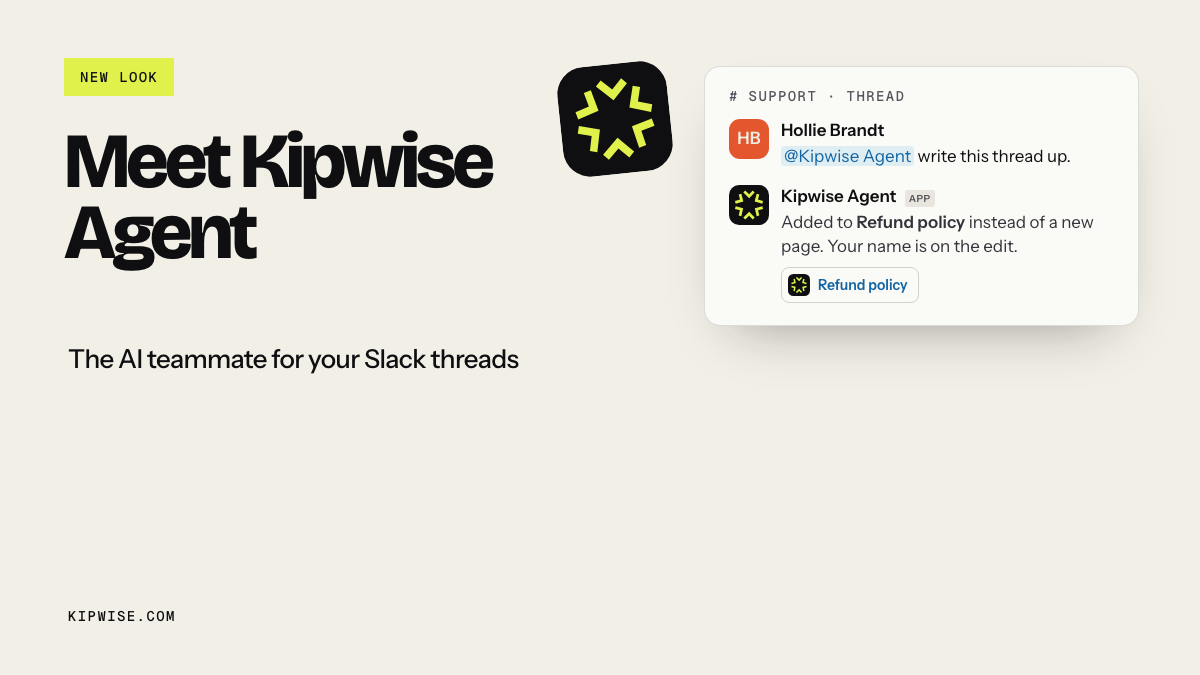
Here is how it works with the Kipwise agent. The example names and the call are made up; the behaviour is what the product does.
A teammate connects their Google Calendar and Google Drive once. After a call, they mention the agent in the client channel:
> Dana: @Kipwise summarize yesterday's Acme call on Google Meet and list the action items
The agent finds the meeting through Dana's own calendar, opens the transcript or the Gemini notes attached to the event in Dana's Drive, and replies in the thread with the decisions and the action items, quoting what was said and linking the document. The Google Drive agent page lists meeting transcripts among the files it reads, and the Google Calendar agent page shows how it reads your own calendar.
Then the thread carries on with plain replies, without mentioning the agent again:
> Dana: who said they would send the revised proposal, and by when? > > Dana: what did their CFO say about payment terms?
Dana confirms each owner and date in the thread, and each owner replies. The record of what was agreed now sits next to the conversation about it, and anyone in the channel can ask about it later.
A few rules shape what the agent will and will not do:
- It works with each person's own Google access. If Dana cannot open the transcript in Drive, neither can the agent when Dana asks. This is the same access table as above, applied to the agent.
- It answers from the transcript and never fills gaps. If something was not said, it says so instead of guessing.
- It treats the words in a transcript as what people said, never as instructions to follow.
- If there is no transcript or notes, it says so and explains how to get one next time. Someone has to start transcription or turn on the notes during the meeting, and Meet transcripts need Business Standard or higher.
- A very long transcript is cut, and the agent tells you when that happened.
In this workflow the agent only reads and answers; the owner confirmation stays with people. The people who made the commitments are the ones who should accept them.
Failure cases and how to handle them
No notes or transcript exist. Nobody turned them on, or the meeting was under about 15 minutes. Fix it forward: make turning on notes the host's first action on every recurring client call, and name a backup host who does it when the usual one is late.
A colleague cannot open the file. Check the "Send notes to" choice and whether they were on the invite. For transcripts, check whether more than 200 people were invited, which limits access to the host, co-hosts and the person who started it. The organizer can share the document directly.
Two transcript files for one call. Someone stopped and restarted the transcript. Meet creates a file per start, so look at both before deciding something was not said.
The notes misattribute a commitment. Gemini summarises speech, and speech is ambiguous. That is the reason for confirming owners in the thread. If the summary and the transcript disagree, the transcript wins, and the owner's reply in the thread wins over both.
The call mixed languages. The notes page says one language per meeting is supported. Expect weaker notes for mixed-language calls and lean on the transcript.
The client wants the notes. Send your own recap rather than switching to all invited guests after the fact. You control the wording, and you avoid sending internal remarks.
How to check the routine is working
Run it for two weeks on your recurring client calls, then look at the threads:
- Does every call thread have a list of decisions and action items posted the same day?
- Does every action item have one name and one date, and a reply from that person?
- How many "what did we agree?" questions came up after the call, and were they answered with a link to the notes rather than from memory?
- Did any action item reach its date without anyone noticing? If so, the owner reply step was skipped.
If the answers are good for two weeks, you have the core of what a coordinator would do after a call, without adding a role. If they are not, the gap is usually step one: notes were not on, or the wrong people could open them.
What to do next
Pick your next recurring client call on Google Meet. Tell its host today to turn on notes in the first minute, and set "Send notes to" to invited guests in your organization. After the call, post the action items in that client's Slack channel with one name and one date each. If you would rather not write that post yourself, install the Kipwise agent, connect Google Calendar and Drive, and ask it about the call in the thread. It costs $10 per user per month with a three-user minimum, as listed on the Kipwise pricing page.