Meet Kipwise Agent, the AI teammate for your Slack threads
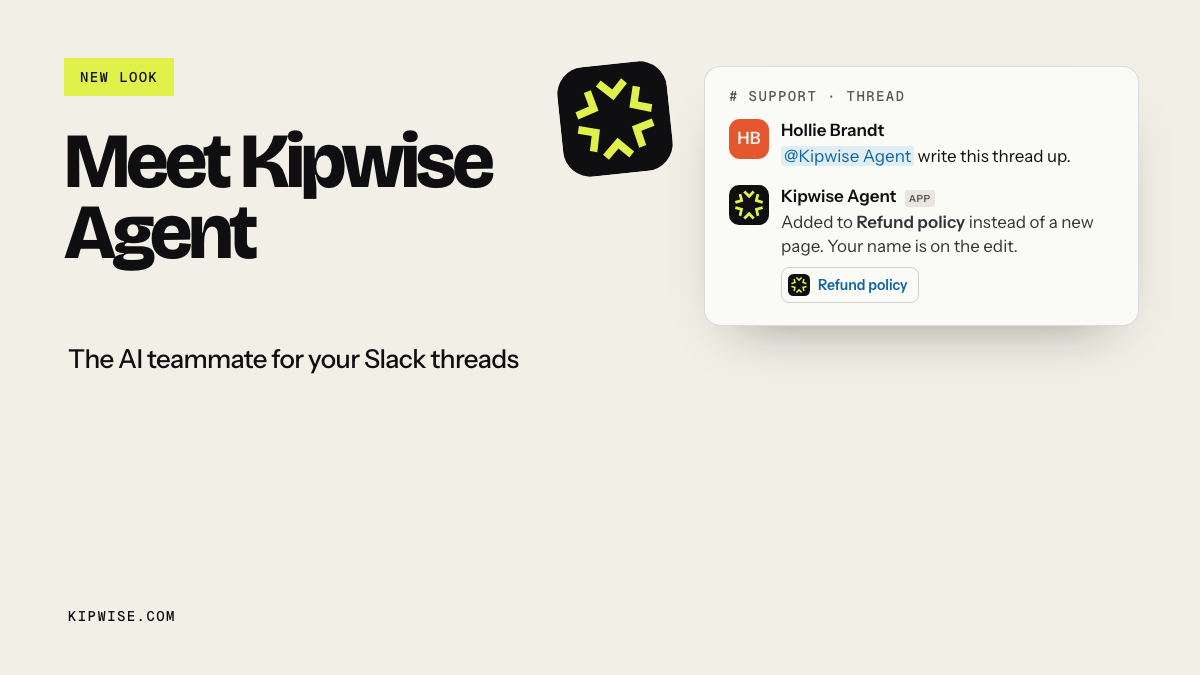
We launched Kipwise Agent today, together with a new look for Kipwise. It is an AI teammate for your Slack threads. Mention it once in a thread and it does the repetitive work, such as following up on the day you asked, posting the status update, updating the record and writing the thread up as a page. It works as each person, with their own accounts and permissions, and it sends an email only after you say so in the thread.
This post is for the founder or ops lead with a job post half written for a virtual assistant or ops coordinator, hired mostly to keep work moving without you chasing it. The method below tests that hire before you publish it, with any tool or with none. Before you hire, put the repetitive part in Slack, then hire for what still needs a person. Kipwise Agent and its limits come after the method.
Start with the job post you were about to publish
Your job post is the best spec you have, because it lists the work you are tired of doing yourself. Pull up the draft, or write ten lines from memory. Keep your own wording, because phrases like "nothing falls through the cracks" say what the hire is for and later become pass lines.
Say your draft reads like this, for a 12-person studio that runs on Slack: "Part-time virtual assistant, 20 hours a week. I need someone who keeps things moving without me chasing it. You will:"
- Follow up with the team on open tasks so nothing falls through the cracks.
- Post a status update in Slack every Monday morning.
- Go through my inbox each morning and draft replies for me to approve.
- Keep the CRM up to date after every sales call.
- Chase clients about overdue invoices.
- Turn decisions made in Slack threads into written process docs.
- Answer the team's repeat questions about how we do things.
- Schedule meetings with clients and candidates.
- Update the client tracker spreadsheet every Friday.
- Reply to clients who message us on WhatsApp.
- Call vendors when email gets no answer.
- Handle tricky client conversations when I'm unavailable.
Sort every line into one of three columns
Go through the list one line at a time and answer four questions.
- Where does the input live? A Slack thread, an inbox, a task database, a phone call or one person's memory.
- Can software reach that place with your access, in a tool it actually connects to?
- Can you check the output in a minute or two, the way you would skim a list or a draft?
- Does the line need judgment with someone outside the company?
A line goes in the software column when questions 2 and 3 get a yes and question 4 gets a no. If software can do the looking up and the drafting but a person has to decide what goes out, the line is split. Phone calls, judgment with clients and vendors, tools your software cannot reach and knowledge that lives only in someone's head stay with a person. Be strict about question 2, because a CRM line counts only if your software connects to the CRM you actually use. When in doubt, mark the line split and let the test settle it.
The example post, sorted line by line
| Line | Column | Why |
|---|---|---|
| 1. Follow up on open tasks | Software | A daily list of overdue tasks by owner, if the tasks live somewhere software can read |
| 2. Monday status update | Software | The same data on a schedule, posted where the team already looks |
| 3. Inbox drafts | Split | Software finds and drafts; you decide what goes out |
| 4. CRM after sales calls | Split | Software logs the note and moves the deal; the facts come from whoever was on the call |
| 5. Overdue invoices | Split | Software lists who owes what and drafts the reminder; the relationship stays yours |
| 6. Process docs from threads | Software | The input is the thread, and a draft page takes two minutes to review |
| 7. Repeat questions | Software, once written down | Only works when the answer is in a doc somewhere |
| 8. Scheduling | Split | Software checks your calendar and drafts times; the back-and-forth is yours |
| 9. Spreadsheet tracker | Split | Reading it and flagging stale rows is easy; editing depends on the tool |
| 10. WhatsApp replies | Person | Unless your software connects to WhatsApp |
| 11. Calling vendors | Person | It is a phone call |
| 12. Tricky client conversations | Person | Judgment with outsiders |
Four lines move to software, five are split and three stay with a person. The split lines deserve the closest look, because the slow part of chasing an invoice or answering an email is usually working out who owes what or what the email needs. That part can move to software while the decision stays with you. If your inbox chore is mostly Slack messages rather than email, this triage routine covers it.
Rewrite the post around what is left
Now write a second version of the job post with only the person column and the human half of each split line. For the example it comes out roughly like this.
- Reply to clients who message on WhatsApp.
- Call vendors and clients when email gets no answer.
- Handle tricky client conversations when the founder is out.
- Review and send drafted client emails and invoice reminders, and confirm meeting times with clients and candidates.
- Update the client tracker from the list of stale rows.
That is a different job from the one you started with. It is mostly client-facing work that needs a phone and good judgment, and it may fill far fewer than 20 hours a week. Put an hours estimate next to every line in both versions. The gap between the two totals is what your test has to confirm.
Test the repetitive part before you post the job
Hand the software lines, and the software half of each split line, to whatever you are testing. Leave the person lines exactly as they are today, so you change one thing at a time. Pick one owner, usually you or your ops lead, and one channel where all the output appears.
Run it for one or two weeks. A daily chase list shows within a few days whether it works, and two weeks gives you two Monday updates to compare. Write a pass line for each chore before day one, so a weak result cannot be talked into a pass afterwards.
If you would rather not try any software yet, run the same week by hand and log the minutes each software line takes. That log shows what the 20 hours in your post would really buy, which is the number the job post was guessing at.
Slack's own tools cover part of this. A reminder set with /remind can post to a channel at a time you choose and repeat by the day, such as /remind #ops to post your status update every Monday at 9am, and Slack suggests a scheduled message workflow for more complex recurring messages. Both post text you wrote in advance. That covers a fixed nudge, but neither can tell you which tasks are actually late, because nothing reads the tracker first.
What to watch, and when to hire anyway
Keep a tally during the test, and replace the example pass lines with your own numbers before day one.
| Watch | How to count it | Example pass line |
|---|---|---|
| Your own chasing | Each "did this get done?" message you send | Fewer in week two than in week one |
| Dropped items | Anything due that nobody noticed in time | The daily list flagged it first |
| Status update | Whether it posted on time without you | Every Monday, on time |
| Drafts | Sent with light edits, or rewritten | Most go out with light edits |
| Repeat questions | Answered with a link, or answered by you | Most get a link |
| Checking time | Minutes a day spent reviewing the output | Well under the time the chore took |
| Cost | What the software charged during the test, scaled to a month | Well under what the hours it replaced would cost |
| Mistakes | Wrong record, owner, date or figure | None reach a client |
Hire anyway, at least for part of the job, if any of these hold at the end:
- The person column still adds up to most of the hours you planned to buy.
- Most of your open loops live in tools your software cannot reach, or in calls and WhatsApp.
- Checking the output takes about as long as doing the chore yourself.
- Mistakes reached a client, or kept coming back after you corrected them.
- After the first few days, nobody but you asked it for anything.
If none of them hold, you may still want a person for the smaller job in your rewritten post. Publish that version and keep the test running while you interview, so the chase list and the Monday update do not wait for the new hire.
Running the test with Kipwise Agent
Kipwise Agent is one way to run the software column inside Slack. Once it is installed, invite it to the channel you picked for the test. Anyone in the workspace can then mention it there and ask in plain language, and plain replies in the same thread keep it going. Say stop or leave this thread when you want it to stop following the thread.
It acts as you. The first time a request needs one of your accounts, such as your email or your CRM, it offers you a link to connect it, which only you can complete, and then it carries on with the original request. Ask it what can you do? to see what your workspace has turned on.
The example's software and split lines turn into messages like these. The tools named are examples, so swap in your own.
- Line 1:
@Kipwise Agent every weekday at 9am, check the Projects database in Notion for tasks past their due date that are not done, and post them here by owner. Check the first two lists against the database yourself. - Line 2: the same kind of request
every Monday at 8:30am, covering this week's due tasks and anything overdue, grouped by owner. - Line 3:
@Kipwise Agent find this week's emails from Acme in my Gmail and draft a reply to the latest one. If you then ask it to send, it shows the recipient, subject and preview, and nothing goes out until you reply in the thread saying to send it. - Line 4:
@Kipwise Agent add a note to the Acme deal in HubSpot: call today, budget approved, proposal due Friday. Then move the deal to Proposal sent. - Line 5:
@Kipwise Agent which customers have overdue invoices in QuickBooks? Draft a reminder email to Acme. Pair it withwhenever a customer payment is recorded in QuickBooks, post it here, so nobody chases a client who already paid. - Line 6:
@Kipwise Agent write this thread up as a page in our Operations folder. If your team uses Kipwise, the page goes into your knowledge base with your name as the author. If your docs live in Notion, ask for a Notion page instead. - Line 7: mention it with the question. It answers from the pages the person asking can see, with a link to the source.
- Line 8:
@Kipwise Agent what's free on my calendar Thursday afternoon? Draft an email to Sam at Acme offering two of those times.
Also useful during a test: remind me Thursday at 4pm to check whether the Acme proposal went out, list my scheduled jobs, what happened on the last run? and how much credit is left?. Commitments made in threads that never reach a tracker are a separate problem, covered in turning Slack conversations into action items.
If your sorted post and pass lines are ready, you can add Kipwise Agent to Slack now. The trial clock starts with your workspace's first message to the agent, so install whenever suits you and send that message on day one of the test.
What Kipwise Agent will not do for you
Check your sorted lines against these limits.
- It does not make phone calls or answer WhatsApp, and ClickUp, Asana, Monday, Shopify and GoHighLevel are not among its connections. Ask for a tool it does not have and it says so, then records the request for the Kipwise team.
- It answers in the thread, or posts a new message in the same channel when you ask, and it will not post its answers to a different channel.
- It sends email only when the person who asked replies in the thread saying to send, within 30 minutes. Nobody else, including an admin, can approve it for them.
- It reads your own primary calendar and can add an event to it. It invites people only when you name them, and the invite goes out straight away.
- When you ask for a change, such as moving a deal, it makes it as you with no second confirmation. Sending email is the exception.
- It only reaches what the person asking can open, and in Notion only the pages you shared when you connected.
- It does not fetch files uploaded into Slack, so point it at the copy in Gmail or another tool you have connected.
- It can be wrong. It is instructed to say when it could not find something rather than guess, and if you correct it in the thread it re-reads and corrects itself. Check its output closely in the first week.
What it costs next to a part-time VA
In 93 hourly Upwork posts from September 2026 that hire someone for repetitive work inside a team's Slack, the median rate was about $10 an hour. At 20 hours a week, that is roughly $800 a month.
Kipwise Agent costs $10 per user per month, or $108 per user per year (10% off), in US dollars excluding tax, with a minimum of 3 users. Each paid user brings $5 of personal credit a month, spent first by that person, and $2 a month to a team pool. One credit is one US dollar of AI usage at cost, with no markup, and unused plan credit resets each billing month. Top-ups start at 20 credits (10% off from 100), never expire and are spent after plan credit. At the 3-user minimum, that is $30 a month with $21 of credit included.
The plan is small next to the VA. The comparison only holds if the agent reliably takes the chasing and the status updates off your plate, which is what the test measures, and it never covers the calls or the client judgment.
A Kipwise team admin can see usage by person or by day and cap how much team credit one person uses a month. When credit runs out, the agent says so in the thread and does nothing else until someone tops up.
How the free trial works
The trial is once per Slack workspace and starts with the workspace's first message to the agent. On Slack's free plan you get $2 of AI credit for 7 days on the fast model. On a paid Slack plan with 3 or more full members, which excludes guests, you get $10 of AI credit for 14 days with all models, and so does an existing Kipwise customer. Buying credits or a plan first skips the trial.
If you are not sure which Slack plan you are on, ask a workspace owner, who manages it from the Billing page. A 7-day trial fits a one-week test of the daily chase list, and a 14-day trial covers two Monday updates. After the trial, a Kipwise team admin subscribes and buys credits from the Kipwise Agent section of Settings on kipwise.com.
Because the clock starts with the first message, sort the post and write your pass lines before you send it. Then start the free trial and make line 1 of your sorted post the first thing you ask for.
References
- Slack Help Center: Set a reminder
- Slack Help Center: Automations: Schedule recurring messages in a channel
- Slack Help Center: Types of roles in Slack
- Slack Help Center: Manage your Slack plan and billing details