Can Slack be your CRM? What each setup lets you do to a deal
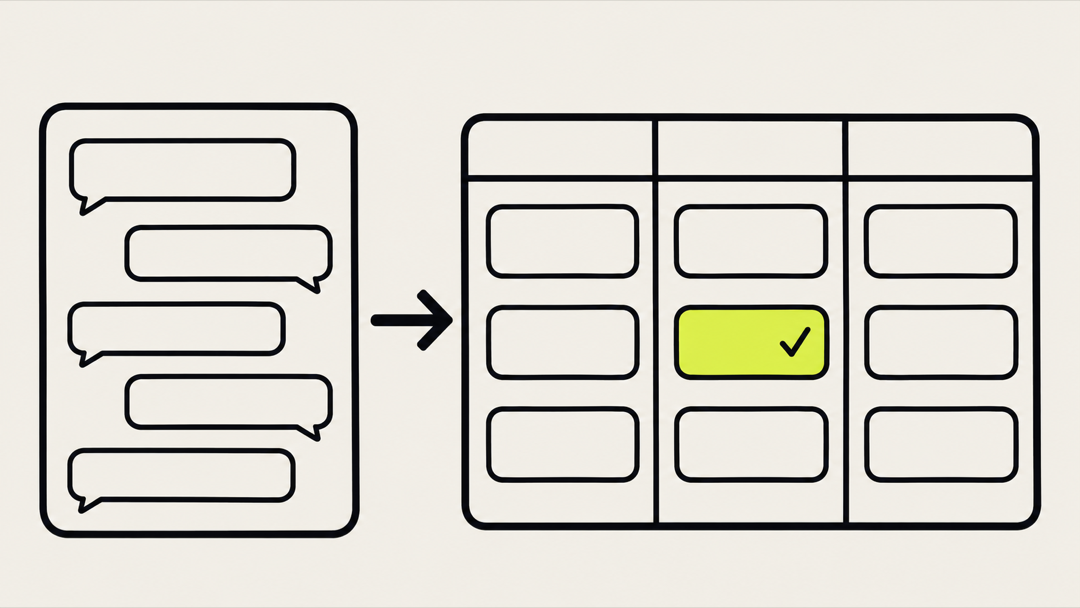
Slack can be your CRM for a handful of deals and no more, and past that point the deals belong in a CRM with Slack as the place where people work on them. Slack's own guidance on simple CRMs for small businesses says a shared system beats a shared spreadsheet once you are tracking more than a handful of deals at once, and a channel gives you even less structure than a sheet does.
If you already live in Slack and have a few live deals, the wrong setup costs you a stale pipeline. Stage changes and call notes get logged at the end of the week, or never, and follow-ups belong to nobody. This article lists what Slack, HubSpot and Pipedrive each let you do to a deal from the channel, gives a rule for when a Slack-only setup stops working, and walks through one thread where the record updates after a single approval, so you can pick a setup this week.
What does each setup let you do to a deal from Slack?
HubSpot lets you create a deal and move its stage from Slack, Pipedrive's pages describe alerts and search, and Slack's native CRM logs activity through Slackbot. The first four rows of the table use only what each vendor's own pages say, and write "not described" where the pages read do not say.
| Setup | Create a deal | Move the stage | Log a note | Search from Slack | Where it works | Plan |
|---|---|---|---|---|---|---|
| Slack CRM (Slack's native option) | Contacts, leads and deals, per Slack's page | Updates records; stage moves not named | Logs activity | Not described | In the conversation, through Slackbot | Business+ plan, no extra cost, data stored in Salesforce |
| HubSpot Slack app | Yes, from the Run Shortcut icon | Yes, with the Update deal stage action | From a message, as a note | First three results, visible only to you | Public channels, or private channels the app was invited to | All products and plans |
| HubSpot Breeze Assistant | Creates and updates records | Yes, on request | Yes, on request | Searches and summarises records | Channels and threads when mentioned, or direct messages | All products and plans |
| Pipedrive Dealbot | Not described | Not described; alerts when a deal moves | Not described | Deals, people and organizations by slash command | Channels you pick, plus direct messages from the bot | Not stated on the pages read |
| Kipwise agent on HubSpot or Pipedrive | Yes, when asked | Yes, when asked | Yes, when asked | Looks up deals, people, companies, activities and owners | The thread where you mention it | $10 per user per month, minimum 3 users |
Each row comes from a different source, and they do not all describe the same thing. Slack's own CRM page lists Slack CRM as a feature that lets you create and update contacts, track leads and deals and log activity in the conversation, powered by Salesforce and included in the Business+ plan at no extra cost, with the data stored in Salesforce in the background. HubSpot documents its records in Slack in the most detail. Pipedrive documents notifications and search. The Kipwise row is the product described in the last third of this article.
Try Kipwise Agent free in Slack: mention it once in a thread and it does the repetitive work, with your permissions.
Which CRM you run decides what Slack can do for you
If you run HubSpot, you can do real deal work from Slack today. If you run Pipedrive, Slack is mostly a notification and lookup surface. That contradicts the line on at least one comparison page. Lark's post on Slack CRM integrations says customer data itself usually remains read-only in Slack and that actions like updating deal stages still require opening the CRM. For HubSpot that is out of date: HubSpot's own page says that when you work with deals in Slack you get an Update deal stage action that moves a deal through stages, and it lists creating contacts, companies and deals from the Run Shortcut icon.
Which CRM you run decides what you can do to a deal from Slack, because HubSpot's own Slack app can update a record and move a deal stage while Pipedrive's Slack pages describe alerts, automations and search. Pipedrive's Slack integration article says the integration lets you share deal and contact data to create and automate Slack posts, with settings for which channels receive updates and which actions trigger them. Its feature page lists deals added, deals won or lost, personal deal updates and searching deals, contacts or organizations from Slack. Neither page says a deal can be created or edited from the channel, so do not plan around it. This is a statement about the pages read, not a claim that Pipedrive has no such feature anywhere.
Before you compare tools, write down the three things you want to do to a deal from the channel (for most small firms, move the stage, log a call, add a follow-up task) and check each against your CRM's own page. A "yes" you cannot find on the vendor's page is a "no" for planning purposes.
Where the native Slack options stop
The native HubSpot app works on one message or record at a time, and it has edges worth knowing. Its search returns the first three results for your term, visible only to you. Its search slash commands show no response in direct messages, group messages or private channels the app was not invited to. Creating a note from a message works from public channels or private channels the app has been invited to.
Breeze Assistant, HubSpot's AI assistant in Slack, closes some of that. HubSpot's page on Breeze Assistant in Slack says it can create or update records and log notes, and that it shows a confirmation card with the proposed changes before a CRM update. It also says that in channels and threads it only responds when it is explicitly mentioned, you must mention it for each request, and it does not monitor channels or threads automatically. In a direct conversation you do not need to mention it each time. To use it from the Messages tab, a Slack workspace admin must first reconnect the Slack app to HubSpot to grant the required permissions.
A native Slack shortcut acts on one message or one record at a time, so the weekly list of deals with no recent activity is the job a channel cannot do for you without a separate step. HubSpot's page lists prompts such as asking Breeze for deals in a stage that have not been updated in 14 days, so the assistant can answer the question when someone asks. Nothing in the pages read says it asks itself on Monday morning. If nobody asks, nobody finds the cold deal.
The practitioner view points at the same plumbing. A RevOps writer's post on HubSpot Slack integration design reports that mapping a HubSpot user to a Slack user by email address is what every feature that addresses a person depends on, and that HubSpot sends a deal owner no notification for their own manual stage changes. That is an author's report, not a vendor guarantee, but it points at the right check: before you trust any setup, confirm that the person who owns the deal is the person the integration thinks they are.
A rule for staying Slack-only, and when to stop
You do not need a CRM on day one. A channel and a shared sheet can hold a handful of deals, and buying software before you have the habit of logging is a way to pay for a second place nobody updates. The rule below is a recommendation, not a vendor's guideline, anchored on Slack's own wording about a handful of deals.
- Keep one channel for deals, and one row per deal in a shared sheet with an owner, a stage, a next step and a date.
- Every call or meeting ends with one line in the channel: the deal, what was said, the next step.
- The owner of the deal moves the stage in the sheet the same day.
- Once a week, someone reads every row and asks whether each deal moved.
- Stop being Slack-only when any one of these happens: you have more deals than you can list from memory, two people touch the same deal, or you need a report you cannot get from the sheet.
Treat the channel as your CRM only while you can name every open deal and its next step without looking anything up, and treat the first deal you cannot name as the signal to move it into a real CRM. This is a recommendation, not a vendor guideline. Company size is a poor trigger for buying a CRM, because a ten-person firm with forty open deals has outgrown the channel before a sixty-person firm with six.
A Slack-only setup has a ceiling beyond memory: a channel is a stream of messages, not a table you can total, so questions like how long deals sit in a stage or what you won last quarter need fields someone has filled in. Slack's own article points the same way, noting that Slack also integrates with many dedicated CRMs for teams that scale or need more structure. Slack sells the native option, so treat that as a vendor's view. ClearFeed, a Slack support-desk vendor, says the same in one line: Slack is the fast collaboration layer, and the CRM stays the structured source of truth for records, reporting and governance. Its test is whether you are trying to store the truth or act on it.
What a thread that updates the record looks like
The pattern that removes the end-of-week logging is a single thread. A person decides what happened, and the agent does the lookup, the typing and the link back to the record. This is the Kipwise agent working with a CRM your team already has. It does not replace the CRM.
Here is an example, made up to show the shape. After a call with a prospect, the deal owner writes in the sales channel:
> @Kipwise find Acme in HubSpot, move it to Negotiation and log today's call: they want annual billing.
The agent finds the deal using the owner's own HubSpot access and posts an Approve or Deny card that says exactly what it will change: the stage, and the note. Only the person who asked can press the card, and the agent changes nothing until they do. The card expires after 30 minutes, and if it is denied or expires, the action is not run. Then the owner keeps replying in the same thread, because plain replies after the first mention continue the work:
> add a task to send the annual quote on Friday
The write shows its own card again. The setup works with HubSpot and Pipedrive. When explicitly asked, it can create or update a record, log a note, add a task or move a deal, and in Pipedrive it can also schedule an activity such as a call or meeting. Deleting a record only happens for the exact person, deal or ticket named. Your workspace can turn any of these lookups or changes off.
The weekly sweep is the other half. The agent can run a request later or on a schedule, in plain language, and posts the result in the channel with the same tools and permissions as a live request from you. A scheduled automation is approved once, together with the list of changes it may make on its own, and later runs do not ask again. So the safe version of the sweep is read-only: ask it each Monday to list open deals with no logged activity in 14 days and to say which deals it could not check. Keep writes out of the schedule, so every change still shows a card.
It can also act when something happens in a connected tool, for example when a deal is created in HubSpot. For deals, that is the useful trigger: you can ask for an automation that runs when a deal is created and posts the result in the channel. It reads the record back with your tools before it acts.
Pricing is $10 per user per month with a minimum of 3 users. A trial on install costs $2 for 7 days on the fast model, or $10 for 14 days with all models if you save a card, are on a paid Slack plan or are an existing Kipwise customer. If you want the detail for your CRM, the Kipwise pages for HubSpot and Pipedrive cover what the agent does in each.
What can go wrong, and what stays with a person
Four failures are worth planning for, whichever setup you choose.
- Wrong deal. Two deals share a company name. Use the record's exact name in the request, and read the card before you press Approve. The card exists so a person sees the change before it happens.
- Wrong person. If the Slack user and the CRM user are not mapped, actions land under the wrong name or not at all. Check the mapping for every deal owner when you set up, as the RevOps post above recommends.
- Missing permission. The agent works with the asker's own CRM access, so a person who cannot see a deal in HubSpot cannot see it through the agent. That is correct, and it means a thin permission set looks like a broken integration. Read how per-user permissions for Slack AI agents work before you roll it out to a whole team.
- Silence. A scheduled sweep that returns nothing may mean no cold deals, or it may mean the lookup failed. Ask it to say what it could not check, and treat an unexplained empty list as a reason to look.
Some things should stay with a person in any setup: deciding the stage, deciding what the note says, and deleting a record. For the longer version of the approval pattern, see human approval for AI agent workflows in Slack.
How to check that it is working
Run a two-week pilot on live deals and count three things.
- Logging delay. For each deal that moved, how long between the call and the record changing? The goal is the same day, not the end of the week.
- Cold deals found. How many deals did the Monday list surface that nobody had flagged? One real catch is evidence the sweep earns its place; zero in two weeks suggests your deals are moving or the list is not reading what you think.
- Cards denied. A denied card is the agent proposing something the person did not want, and a rising count is a reason to make requests more specific.
Then compare against what you had. If you had been logging in a sheet, the sheet's last-edited dates are your baseline. If you had been logging nowhere, the baseline is a list of deals you could not place a next step against.
For the hygiene side of this, the existing guide to keeping your CRM clean from Slack without a data-entry VA covers logging notes and clearing empty fields, and the guide to lead follow-up for a small firm covers the touches that keep new leads from going cold.
What to do next
Count your open deals today and write each one's next step on a line. If you cannot finish the list from memory, you have passed the point where Slack alone works, so pick HubSpot or Pipedrive this week, check the three deal actions you care about against that vendor's own Slack page, and then decide whether you want the thread to do the typing.