Gmail to Google Drive for a small firm: which method files each client attachment where it belongs
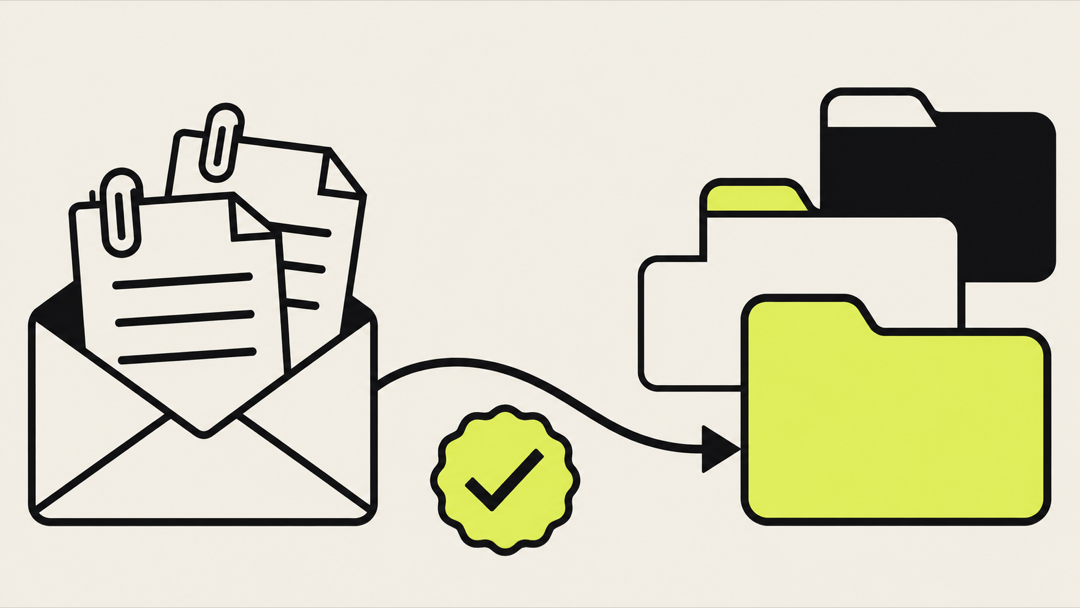
Gmail's Add to Drive button is a manual click on the attachment, so saving attachments automatically means a separate tool, and the tools you can set up in an afternoon copy files into one folder you picked in advance. Filing by client takes a rule you keep up to date, plus a person who approves the exceptions.
That gap is the daily chore of whoever runs the inbox at a small firm. One Hacker News author describes saving Gmail messages and attachments to specific Drive folders under a naming convention at about 20 to 30 seconds per email, several times a day. Made-up example: 30 client attachments a week at 25 seconds each is about 12 minutes of pure clicking, before anyone hunts for the file someone put in the wrong folder. This guide compares the methods by what picks the folder, shows where each one files a document wrongly, and ends with a Slack thread where the agent proposes the folder and file name and you approve before anything lands in Drive.
Which method fits which filing job?
Use the method that matches what decides the folder: nothing (one folder), the sender or subject, or the content of the file. The table lists the options a small firm realistically has.
| Method | What picks the folder | Where it files wrongly | Fits when |
|---|---|---|---|
| Add to Drive, by hand | You, by hand | Nowhere, but it is the 20 to 30 seconds per email chore | A handful of files a week |
| A Zapier Zap (Gmail New Attachment, then Drive Upload File) | One Drive and one folder you choose in the Zap | Every matching file lands in that one folder, whichever client it belongs to | One sender or one document type always goes to one place |
| A Google Workspace Studio flow | A Drive location you select, with conditions you build on the email | A sender you wrote no condition for is not filed at all | A few clients, each with a rule you are willing to write |
| A script you maintain (Apps Script) | Whatever you code | Whatever you forgot to code; it breaks when the person who wrote it leaves | You have a developer and a stable list of clients |
| An agent in Slack that reads the email | A sender-to-client list you keep, checked against the email and attachment text | A sender missing from the list, or a file with no readable text | Many clients, mixed document types, and you want a person to confirm |
Zapier's own guide for this job uses the Gmail New Attachment trigger and a Drive Upload File step, lets you filter by sender name or by words in the email, and has you pick the folder in the Zap, so it files by rule, not by client. It also notes that a multi-step Zap needs a paid plan or a free trial.
Google's Workspace Studio guide lists an "Add email attachments to Drive" step, where you select the Drive location, and a "Check if" step whose own example sends an email with Invoice in the subject to a Finances folder. Conditions can be combined and nested, so a firm can build one branch per client by hand. That works until the client list grows, because every new client is another branch to write and test.
The community view is older but consistent. A 2016 Hacker News commenter reports that IFTTT can save all Gmail attachments to Drive but cannot filter for only certain ones, and another commenter in the thread points to Apps Script. Both are author reports, not measurements, and the tools have changed since. The pattern still matches the table: the simple tools save everything to one place, and the flexible ones need someone to maintain them.
Try Kipwise Agent free in Slack: mention it once in a thread and it does the repetitive work, with your permissions.
Where does each method file to the wrong folder?
Every method fails in the same few places. Check your own inbox against this list before choosing.
- The sender is not the client. The client's bookkeeper, assistant or family member sends the file, or a shared mailbox does. A rule keyed to the client's own address misses it, and a rule keyed to a broad subject word files it under whoever the rule names first.
- A fixed folder has no client in it. A Zap that sends every attachment from one domain to one folder files all of that client's invoices, contracts and tax forms together, and the person still sorts and renames by hand.
- A forwarded email files the same document twice. Per Gmail Help, attachments are included when you forward a message but not automatically when you reply, so a forward inside the firm can trigger a second save of a file you already filed.
- A Drive link is not an attachment. If a client shares a Google Doc or a Gemini note by link, Google's Studio guide says Drive links are not considered attachments and will not be moved to Drive. Nothing is filed and nothing tells you.
- Some attachments cannot be added. Gmail Help warns that you can't add certain attachments to Drive, so expect some files to need a manual save.
- The name stays whatever the sender typed. A file called
scan_0043.pdfin the right folder is nearly as hard to find as a file in the wrong one, which is why a naming rule belongs in the same step as the folder (see our guide to a file naming convention).
The first failure is the one that decides how the rule should be built.
Can a label per client trigger the filing?
No, not in Google's flow builder. Google's Studio "When I get an email" starter lets you set conditions on From and To, on words, on the subject, on attachments and on size. Google Workspace Studio can start a flow only on Gmail's default labels, so a label per client does not work as the trigger there and the sender or subject has to carry the client. The starter's own notes say custom labels are not available and only the default Gmail labels can be used.
That matters because the usual advice for a small firm is to label each client's mail and let a rule key off the label. If you want that to drive Drive filing, you will need a method that reads the sender or the content, or you will have to apply the labels and then run the filing by a different route.
How do you build a filing rule that survives real mail?
Write the rule as three small lists and one exception path, then pick the method that can read all of them.
- List the clients and their folders. One row per client: the Drive folder, the year structure under it and the document types you file (contracts, invoices, signed forms).
- Map senders to clients. One row per sender address, including the bookkeeper and assistant addresses, each pointing to a client. Keep a written list that maps each sender address to a client, and send any unknown sender to a person instead of a catch-all folder, because senders you have never mapped are the ones most likely to be filed in the wrong place. This is a recommendation based on the failure modes above, not a measured result.
- Write the naming rule once. For example: date, client, document type, then the sender's own title. If your firm has no standard yet, start from the file naming convention guide.
- Choose what a person must approve. Contracts, signed forms and anything over an amount you set should wait for a yes. Routine invoices from a mapped sender can be proposed and approved in one tap.
A sender list is also what makes a content check useful. If the email comes from an address you have mapped to Acme and the attachment text says Beta Corp, the mismatch is the thing a person should see before the file moves. A fixed-folder tool cannot notice it, because it never reads either side.
What does the Slack thread version look like?
The agent works on each step when you ask for it in a thread, and a person approves the Drive change. Here the example is made up, so read it as a pattern, not a log.
You write in the channel: "@Kipwise, read the newest email from billing@acme.example that has an attachment. Check the sender against the Client map sheet, propose a file name from our naming rule and the folder, and drop the attachment here. Do not upload anything yet."
The agent searches your Gmail, reads the text of the PDF, Word, Excel, PowerPoint or text attachment, puts the attachment in the thread and replies with the plan: sender matches Acme Ltd, document looks like a signed renewal, proposed folder Clients/Acme/2026/Contracts, proposed name 2026-11-24 Acme renewal agreement signed.pdf.
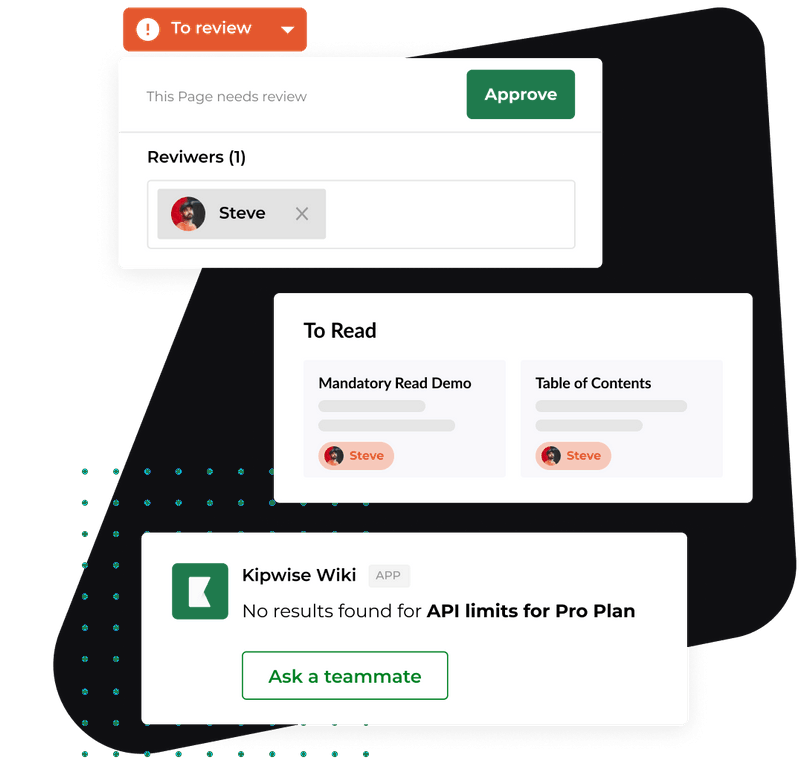
You reply: "That is the Acme renewal, file it under 2026 contracts." The agent then asks to upload the file you posted in the thread to that folder, and a card appears. Approve uploads it; Deny, or letting the card expire after 30 minutes, means nothing is saved.
Each step matches the product documentation. The agent reads Gmail, including the text of PDF, Word, Excel, PowerPoint and text attachments, and can drop an attachment into the thread. In Drive, it uploads a file you posted in the thread, creates a folder and moves a file, and each Drive change waits for your Approve card. Gmail and Drive are separate connections, and changing Drive files is a separate permission from reading them, so connect both when you set it up. The documentation lists these as separate capabilities, so do not read the thread above as a promise of one unattended chain from inbox to folder. Two limits follow from that: a scanned PDF that is only an image may have no text to read, so file scans by hand, and the product documentation does not say the agent can set a file's name at upload, so confirm the name on the card or in a first test before you rely on it.
Can the agent start from the email instead of from you?
Yes, for a matching email. Kipwise automations can start when an email from a given sender, with given words in the subject, arrives in Gmail; the agent gets the sender, the subject and the start of the text, and reads the whole email only when it needs to. The documentation does not say a single automation can match a list of senders, so start with the one or two clients who send you the most files and add others once you trust it.
Creating an automation needs approval once, together with the list of changes it may make on its own, and later runs do not ask again for those. Approve the automation to read the email and post the plan only, and leave the Drive upload outside what it may do on its own, because approved automations skip the card for the changes you approved. Then each upload still shows a fresh card to the person who has to confirm it. That is a recommendation about how to set it up, so test it: run the automation on one real email and check that the upload asks before it saves.
What do you do when the file is wrong, a duplicate or unreadable?
Treat each as a named exception that goes to a person, not as something the rule guesses at.
- Unknown sender. Post the sender, subject and attachment name in the channel and file nothing. A person maps the sender to a client, and the list gets one more row.
- Wrong client in the text. If the sender maps to one client and the attachment names another, hold it and ask. This is the case a human catches in a second.
- Duplicate. Ask the agent to search the client's folder for the same file name before you approve the upload. If it is already there, deny the card.
- No readable text. A scan, a photo or a password-protected PDF has nothing for the agent to read. Leave it in the inbox and file it by hand.
- A Drive link instead of a file. Ask the client to send the file, or save a copy from the link yourself. Google's flow does not treat a link as an attachment.
- Someone denies or ignores the card. The upload does not run. Say in the channel who owns the pending file so it does not sit in the inbox for a week.
The whole-email case is a different job. If you need the email itself saved as a PDF, as the Hacker News author did with a custom add-on, decide that separately, because it is not the same step as filing the attachment.
How do you check that the filing works?
Run it in parallel with your current habit for two weeks and count the differences, not the minutes.
- Take the last 20 client attachments you filed by hand and write down the folder and name each one got.
- Ask the agent for the folder and name it would propose for the same 20, without uploading anything.
- Count disagreements and sort them: unmapped sender, wrong client, naming rule unclear, unreadable file. Each category tells you whether to fix the list, the rule or the exception path.
- For the next two weeks, approve the proposals and spot-check five filed files a week against the original email.
- Track three numbers: files filed in the wrong folder, files left in the inbox as exceptions, and the time the person spent on filing. As a suggested threshold, stop and fix the list if more than one file in twenty lands in the wrong folder.
Running in parallel finds the gaps in your list while a person still approves every upload. Once the disagreement count stays near zero for a few weeks, you can let routine invoices from mapped senders go through with a quicker approval, and keep contracts and signed forms on a full check.
What to do next
Open your inbox, pick the three clients who send you the most files and write down the sender addresses they use, including their bookkeepers. Put them in a sheet with the folder and naming rule beside each one. Then try the pattern on one real email.
If you use Slack, connect Gmail and Drive editing to Kipwise, mention the agent and describe the rule in one message, as in the thread above; the connection steps are on the Google Drive agent page. The install-only trial is $2 for 7 days on the fast model, and saving a card (not charged) gives a $10, 14 day trial on all models. If the first collection step is what costs you time, start with client document collection, and see how to run document processing in Slack safely before you let the agent read sensitive files.