How to Send Weekly Client Updates from Slack Without Hiring an Account Coordinator

A weekly client update is a short note: what got done, what is next, whether the work is on track, and what you need from the client. It is one of the cheapest ways an agency keeps a client calm, and it is usually the first habit to slip. The inputs live in five places, assembling them takes the account lead's Friday, and by the time the update goes out the client has already asked "where are we?".
This guide is for founders, ops leads, and account leads at Slack-first agencies and service firms of roughly 5 to 100 people. It shows how to have an agent assemble each client's draft inside Slack, so a person only edits and sends. If you still hire an account coordinator afterwards, you hire for judgment and client calls, not for copy and paste.
Why the weekly client update slips
Agencies already know the format. Forge's weekly client update guide boils a good update down to four questions: what got done this week, tied to the client's goals; what is next; whether you are on track against the plan; and anything blocked or needed from the client. Timelint's agency template adds decisions and risks. KeepPostd says the client will spend about 30 seconds reading it and suggests the same day and time every week. Agency Onboarding OS puts it bluntly: clients send "where are we?" emails because they have no signal, and a weekly five-line email removes that anxiety.
Everyone agrees on the template. The update still slips because of assembly. Vantaige, a vendor that builds these workflows, describes Friday afternoons spent pasting from Slack, the project tracker, GitHub, and billing into a status doc for each client. AutoFlowGuide estimates fully manual updates at 15 to 20 minutes per client per week, or 2.5 to 3 hours a week for an agency with 10 clients. Those are author and vendor estimates, not a survey.
This is also why agencies hire. In Kipwise's review of 124 Upwork job posts for work inside a client's own Slack, status updates and reporting appeared in 58% of posts, more than any other task. The words in those posts are familiar: they want someone so "nothing falls through the cracks" and so work "keeps it moving without me chasing it". One agency post asked for a person so "nothing quietly dies in Slack".
What to automate and what to keep human
Forge's guide to automating client reporting gives the rule that matters most here: automate the structure, keep the judgement human. It lists three things that should never be automated: the interpretation of the numbers, bad news such as a slipped deadline, and strategic asks like whether to double down on a channel.
That maps cleanly onto the split between an agent and the account lead.
| Part of the update | Who does it | Why |
|---|---|---|
| Collect what happened in client threads | Agent | Repetitive search across channels |
| List tickets closed, open, and at risk | Agent | Read from Linear or Jira |
| Pull agreed metrics with date ranges | Agent | Read-only analytics pulls |
| Compare against last week's promises | Agent | Mechanical diff against a stored note |
| Explain what the numbers mean | Account lead | Interpretation is the agency's job |
| Deliver bad news or a scope change | Account lead | A real conversation, not an auto-email |
| Decide and send the final text | Account lead | It goes out under their name |
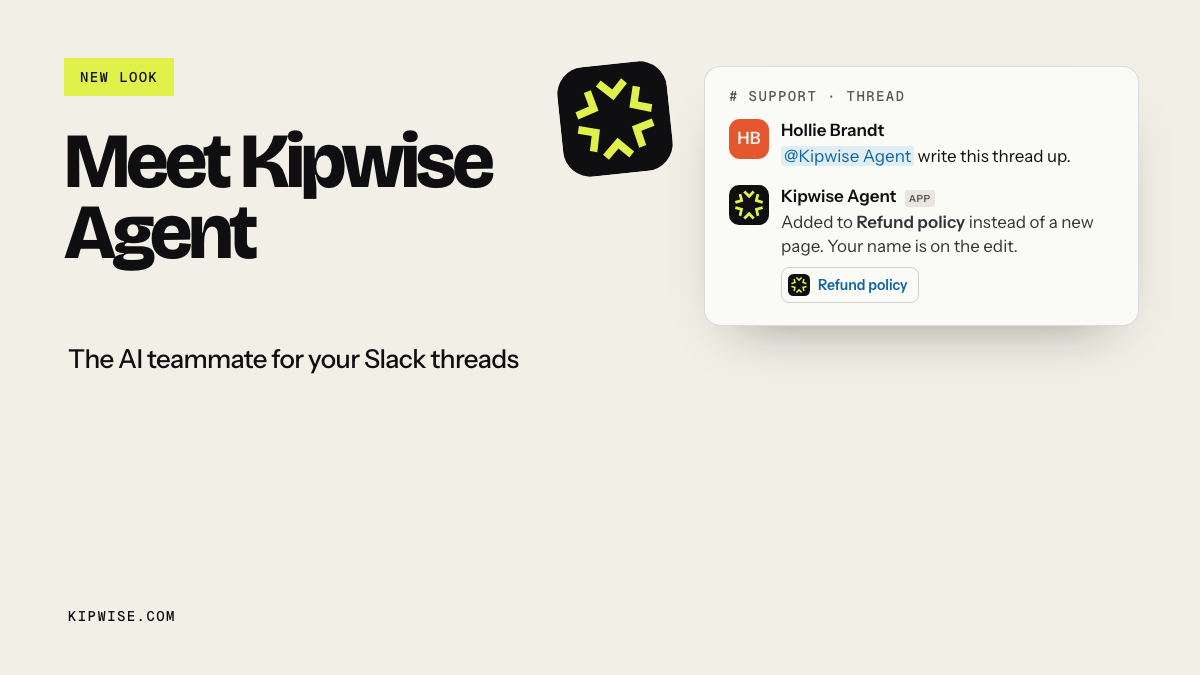
An agent such as Kipwise Agent fits the left side of that table. It works in Slack threads, as the person asking and with their permissions, and the product page describes its job as following up, posting the status update, and updating the record.
The update loop in one internal thread
The whole loop runs in your internal channel for that client, not in the shared one. Here is the shape:
- On Thursday morning a scheduled request starts a thread in the internal client channel.
- The agent searches that week's client threads using the account lead's own Slack access. It cannot read a channel the lead cannot read.
- With Linear or Jira connected, it lists the client's issues closed this week, still open, and overdue, as the lead.
- It reads last week's sent update from a Kipwise page or a Google Doc in Drive.
- If the client gets numbers, it pulls them from Google Analytics, Search Console, or Google Ads, and states the date range next to every figure. Those reads are read-only.
- It posts a draft in four parts (done, next, on track, need from you) with last week's promises at the top.
- The account lead edits in the thread with plain replies. No new mention is needed after the first one.
- The lead either asks the agent to send the final version by Gmail or pastes it into the Slack Connect channel themselves.
Each of those reads uses the requesting person's own connection. That is the same rule Slack's agent design guidance sets for agents: an agent should not read, access, or use information that the invoking user could not access on their own.
Close out last week's promises first
Most weekly update templates treat each week as a fresh start. Second Axis, describing its own automated stakeholder updates, makes continuity a design requirement: each update closes out last week's "next week we will" promises as done, slipped with a reason, or explicitly dropped, and never repeats an old item as news.
This is the first thing to change in your own update. Open every update by closing out last week's promises as done, slipped with a reason, or dropped, because silent disappearance of a promised item costs more trust than a slip you name. A client who was told "we'll have the landing page copy by Wednesday" notices when Wednesday comes and the line is gone. A slip you name, with a reason and a new date, reads as control. A promise that silently disappears reads as the agency losing track, which is the exact fear that makes a founder hire a coordinator.
The agent is good at the mechanical half of this. Store each sent update on a Kipwise page or in a Doc, and the next draft starts by listing every "next week" item from it. The agent marks the ones it can match to a closed ticket, and leaves the rest as "not confirmed" for the lead to settle. It does not decide that something slipped for a good reason. The lead writes that line.
Schedule the draft, never the send
Where the schedule should stop depends on how approvals work. Before a live request posts a message, sends email, or changes something in a connected service, Kipwise Agent shows the person who asked an Approve or Deny card. Before a Gmail send, that card shows the recipient, subject, and a preview, and nothing goes out unless they approve. The card expires after 30 minutes.
Scheduled requests are different. Creating a scheduled task needs approval once, and its later runs do not ask again. That is convenient for an internal digest. For a client email it means a Thursday job written as "send the weekly update to the client" would send every week on its own, with whatever the draft says.
Schedule the draft, never the send: a scheduled request is approved once and later runs do not ask again, so the client-visible step should stay a live action the account lead approves or posts by hand. In practice the schedule only drafts, and only into the internal channel. The send is a separate, live request from the account lead after editing, such as "send this to Dana at the client from my Gmail", which raises the card with the recipient and preview. If the client lives in Slack Connect rather than email, the lead copies the final text into the shared channel by hand. This keeps the one client-visible step tied to a person reading the final words, which is the human gate that both Forge and Vantaige recommend. Vantaige's workflow, for example, lands drafts in Gmail and never auto-sends.
Keep drafts out of the shared channel too. Slack's Connect guide shows a banner when external organizations are in a conversation, and that banner is your reminder that anything drafted there is visible to the client. Second Axis keeps a separate customer-facing version with internal names and problems scrubbed. Drafting in the internal channel gives you that separation for free: the messy draft, the "do we tell them about the bug?" debate, and the teammate names all stay inside.
Make missing data visible instead of filled in
Vantaige's design rule for its client reports is worth copying: the agent never invents numbers or task names, every line traces back to a real source row, and a section with no data says "no activity this week" instead of padded prose. Its prompt also forbids calling a task done when the input only says in progress.
Go one step further. Have the draft say plainly which project, ticket list, or metric it could not read, and treat each gap as a setup fix, because a confident status for work nobody checked is worse than a missing line. A typical first week will have gaps. The client's design work lives in ClickUp, which is not one of Kipwise Agent's built-in connections. The Search Console property was never connected. A teammate discussed the launch date in a DM the lead cannot see. Kipwise Agent is designed to say when it has not read something rather than describe it, and you want that statement visible at the top of the draft: "Could not read: design tasks (ClickUp not connected); organic numbers (no Search Console connection)."
A listed gap gets fixed the next week; a confident wrong line turns into a correction. Asana, ClickUp, and Monday came up often in the Upwork hire posts, so check your own stack early. You can ask the agent "what can you do?" and it answers from your workspace's live configuration.
Set it up in four plain requests
You do not need Workflow Builder steps or an n8n canvas. Each setup step is one message in the internal client channel.
- Connect your tools. Linear or Jira, Google Drive, Gmail, and any analytics account you report from. Each is a separate connection made with your own account.
- Write the format once. Paste your update format and last week's update into a Kipwise page or Doc: done, next, on track, need from you, under 200 words, plus any metrics you agreed with this client.
- Create the schedule. "Every Thursday at 10am, start a thread here with a draft of this week's update for Acme. Use this week's threads in this channel, the Acme project in Linear, and last week's update in the Acme updates doc. Open with last week's promises and their status. List anything you could not read. Do not send anything." You approve this once.
- Send it live. After editing, reply in the thread: "Send the final version to Dana from my Gmail with the subject Acme weekly update." Approve the card if the recipient and preview are right.
Repeat step 3 for each client, in each client's own internal channel. Keep instructions per client, since one wants spend and leads and another only wants the staging date.
An illustrative example
The following is a made-up example to show the shape, not a customer story.
A seven-person web studio has six retainer clients. The founder writes every update on Friday afternoon and is late on at least two most weeks. They set up the Thursday draft for three clients first.
On the first Thursday the draft for one client reads: last week's promises, two done (homepage copy approved, form bug fixed), one not confirmed (pricing page design). This week, four Linear issues closed and one overdue. Need from you: brand photos for the about page. Could not read: the client's ad account was never connected.
The account lead edits it in a few minutes. They change "not confirmed" to "slipped to Tuesday, waiting on the photos", rewrite the overdue item in plain language, and delete a line that mentioned an internal bug the client does not need to see. Then they ask for the Gmail send and approve the card. The next week, the ad account is connected and the gap line is gone.
What native Slack tools cover
Slack can already post on a schedule. Scheduled recurring messages are built for reminders, daily stand-ups, and keeping project updates organized, and the Workflow Builder guide covers no-code workflows that collect inputs from people.
Neither one assembles the update. A recurring message posts the same text each week. Slack's AI recaps, available on some paid plans, give a reader daily summaries of channels they follow. They do not read your tracker, compare against last week's promises, or prepare the client email.
Failure modes to plan for
- The draft lands in the shared channel. A scheduled request posts its result in the channel where it runs, so create it in the internal channel and say "do not send anything" in its instructions.
- A promise falls off the list. If last week's update was never stored in the page or Doc, there is nothing to compare against. Make saving the sent version part of the send step.
- A ticket title leaks into the client email. Ask the agent to rewrite each item in client language and keep ticket links in the internal draft only.
- Numbers without context. A metric line with no date range or interpretation invites the wrong conclusion. The agent states the date range; the lead adds what it means, or cuts the number.
- Bad news in a routine update. If the week includes a missed deadline or a scope change, the lead should talk to the client first and mention it in the update second. Forge is explicit that bad news is a conversation, not an auto-email.
- The person who set up the schedule leaves. Scheduled requests run with the creator's connections. Ask the agent to list your jobs when roles change, and recreate them under the new account lead.
Pilot it for four weeks
Pick three clients and run the loop for four weeks before you decide anything about hiring. Track four numbers per client:
- Updates sent on the agreed day out of four.
- Minutes the lead spent editing each draft.
- "Where are we?" messages from the client each week.
- Last week's promises closed out with a status, versus dropped without one.
If updates now go out on time and editing takes minutes rather than most of an afternoon, the repetitive part is handled. What remains, such as client calls, judgment on bad news, and upsell conversations, is a clearer job description if you still decide to hire.
Before you hire the account coordinator
The Upwork posts behind this guide had a median hourly rate of $10, which is roughly $800 a month for a 20-hour-a-week assistant on Kipwise's own modeled estimate. Kipwise Agent costs $10 per user per month with a minimum of three users. Put the weekly client update in Slack first, see what is left, and hire for that.
Your next step: pick the client whose update was late most recently, open its internal channel, and write the Thursday draft request from step 3 above. Leave out the send.
References
- Forge: The weekly client update email: the four questions a weekly update answers.
- Forge: How to automate client reporting: automate the structure, keep interpretation, bad news, and strategic asks human.
- Timelint: Weekly client status update template: ticket-first template with blockers, decisions, and risk.
- KeepPostd: Weekly client update template: short updates, same day each week.
- Agency Onboarding OS: Client communication templates: a weekly five-line email removes the "where are we?" signal gap.
- Vantaige: Automate weekly client status reports: Friday assembly work, drafts never auto-sent, no invented numbers or task names.
- AutoFlowGuide: Automate client project updates: author estimate of 15 to 20 minutes per client per week.
- Second Axis: Weekly stakeholder updates: promise continuity and a scrubbed customer-facing version.
- Slack Help: Slack Connect guide: the banner that shows external organizations in a conversation.
- Slack Developer Docs: Agent design: agents should respect the invoking user's data boundaries.
- Slack Help: Schedule recurring messages: scheduled channel messages for reminders and project updates.
- Slack Help: Guide to Workflow Builder: Slack's no-code workflows.
- Slack Help: Guide to AI features in Slack: recaps and summaries by plan.
- Kipwise Agent: works as the person asking; $10 per user per month, three-user minimum.