Kipwise Agent for Bob
Kipwise Agent is an AI agent in Slack and Microsoft Teams. Connect it to Bob and people can ask who is out, check their time off balance and tasks, and request time off from chat, with an Approve card before anything changes in Bob.
The same HR questions keep landing on your People team: who is out this week, how many holiday days are left, who is my manager, what is still open on my list. With Kipwise Agent connected to Bob, people ask in Slack or Microsoft Teams and get the answer from Bob in the same thread. Everyone sees only what they are allowed to see: colleagues’ names, titles, departments and managers are open to all employees, while balances, requests, tasks and documents are shown only to the person themself or a team admin, and a question asked in a channel is answered to the asker alone. Anything that changes Bob waits for an Approve card, and time off always goes to the usual approver in Bob. Kipwise reads Bob when asked and keeps no long-term copy of your Bob data.
1. Overview of the integration
Kipwise Agent is an AI teammate in Slack and Microsoft Teams. Connect it to Bob and your people can ask HR questions where they already chat. The agent reads the answer from Bob and replies in the same conversation.
What people can ask or do
- Who is out of the office this week, or today.
- A colleague’s job title, department, site, manager, work email, photo and a link to their Bob profile.
- Their own time off balance, time off requests, tasks and document names.
- The company’s time off policy types and job catalog.
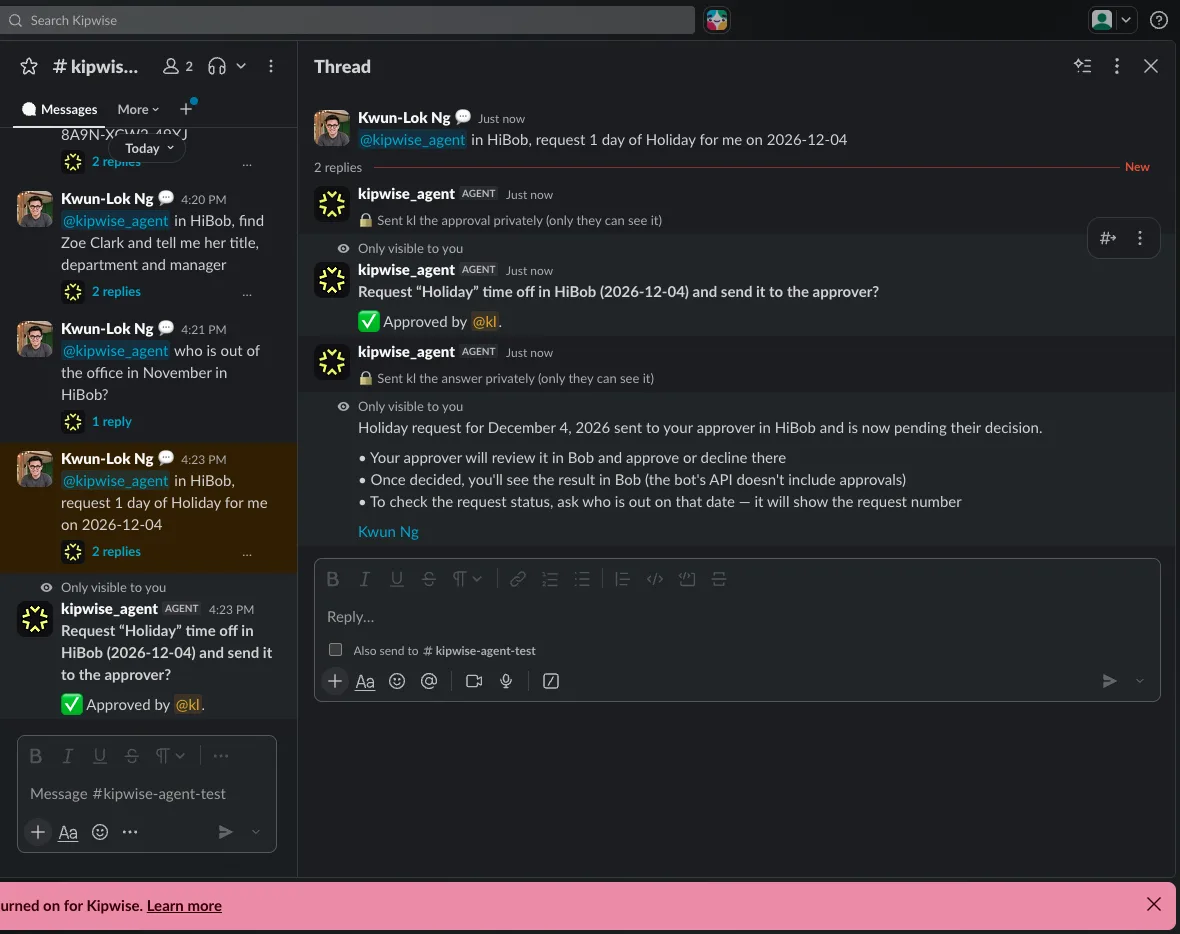
- Ask for time off, cancel a request, mark a task as done, or upload a file from Slack to their own documents. Each change waits for an Approve card.
An Approve card is a message with Approve and Deny buttons. Only the person who asked can press them, and nothing changes in Bob until they press Approve.
Team admins can also look up the same things for anyone, ask for or cancel time off for someone else, change a person’s name, mobile phone, birth date, about-me text or hobbies, use the confidential documents folder, and set up automations that react to events in Bob.
Who sees what
Bob cannot tell Kipwise who is asking, so Kipwise applies the rules itself:
- A colleague’s name, title, department, site, manager, work email and photo are open to every employee.
- Balances, time off requests, tasks, documents and personal details are shown only to the person themself or a Kipwise team admin. Ask about someone else’s and the agent says no and gives their Bob profile link.
- A colleague’s approved time off shows as dates only. Pending requests of others stay hidden.
- Asked in a channel, answers and Approve cards that show HR data reach only the person who asked.
- Time off always goes to the person’s usual approver in Bob. The approver decides in Bob; the agent gives them the link.
How it connects
One connection covers the whole company. A Kipwise team admin asks Kipwise Agent to connect HiBob, presses Connect and approves the app in Bob as a Bob admin. Nobody has to connect a Bob account of their own.
What you need before you start
- A Bob admin who can install apps from Bob Marketplace.
- Kipwise Agent installed in your Slack workspace (https://kipwise.com/auth/agent/install) or Microsoft Teams (https://kipwise.com/microsoft-teams-agent).
- A Kipwise team admin (the access role admin or super admin in Kipwise) to press Connect. If that person is not a Bob admin, do the steps together with one.
- On every person’s chat profile, an email that matches their Bob work email.
2. Installation steps
You connect HiBob from Slack or Microsoft Teams, once for the whole workspace. It takes about 2 minutes.
- In Slack or Microsoft Teams, a Kipwise team admin asks Kipwise Agent: “Connect HiBob”. Asking a HiBob question, such as “Who is out today in HiBob?”, works too. If your Slack plan has no direct messages with the agent, mention Kipwise Agent in a channel.
- The agent shows a Connect button that only you can see. Press it within 5 minutes.
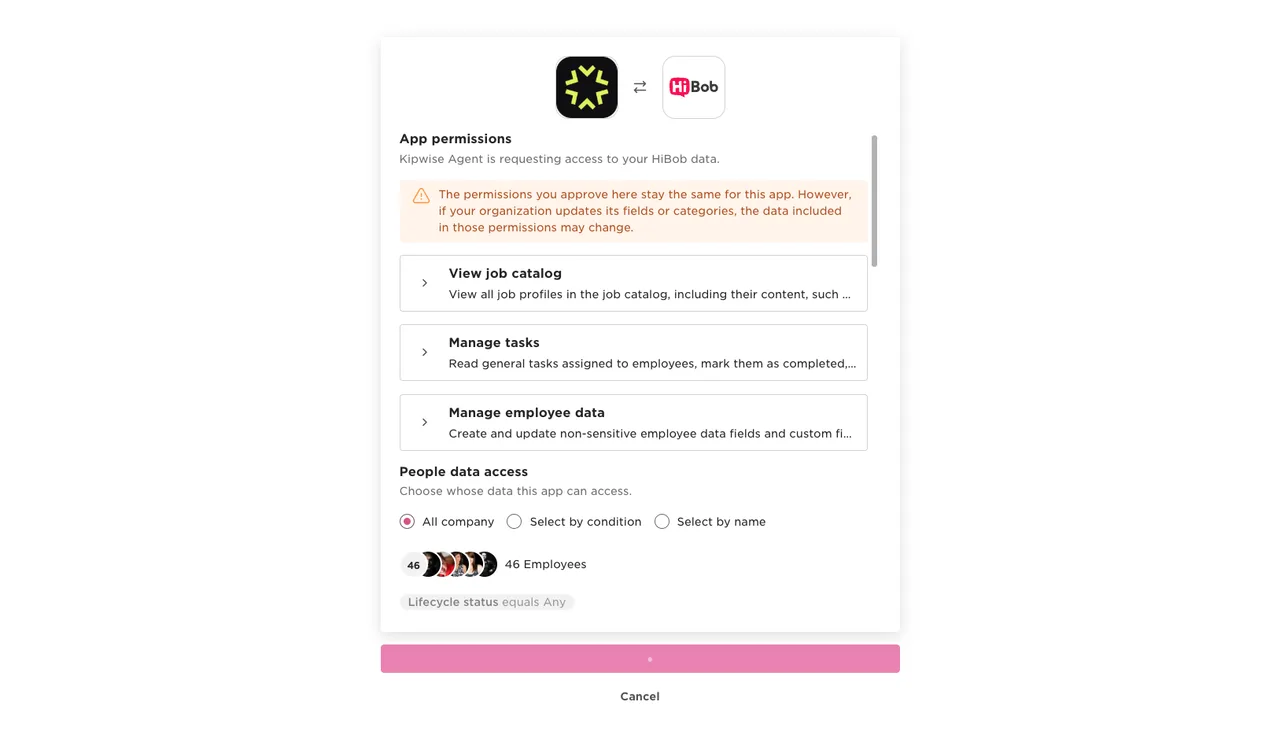
- Bob opens. Sign in as a Bob admin. Bob shows the permissions Kipwise Agent asks for (explained in the table below).
- Under People data access, choose All company (see Recommended People data access setting below).
- Click Authorize. Bob returns to a Kipwise page that says HiBob is connected, and the agent says in your conversation: “HiBob is now connected for the whole workspace.”
- Try it: “Who is out of the office this week in HiBob?”
Only a Kipwise team admin can connect HiBob. Anyone else who presses Connect is told to ask an admin, and nothing is connected.
What Bob will ask you to approve, and why
Bob may word these a little differently.
| Permission | What Kipwise Agent uses it for |
|---|---|
| View employee data | Find people and show a colleague’s directory details. For yourself or a team admin, also work, personal and about details. It is also how the agent recognises each person by their work email. |
| Manage employee data | Lets a team admin change a person’s name, mobile phone, birth date, about me or hobbies, after an Approve card. |
| View time off | Who is out, and a time off request by its number. |
| Manage time off | Ask for time off and cancel a request, after an Approve card. |
| View private time off details | A person’s time off balance and your company’s time off policy types. |
| Manage tasks | List a person’s tasks and mark one as done, after an Approve card. |
| View documents | List the names of a person’s documents. |
| Manage documents | Upload a file from Slack to a person’s documents, after an Approve card. |
| View job catalog | List your job roles and job families. |
Salary, bank details, other sensitive employee data and employee history are not requested.
Recommended People data access setting
Choose All company. Kipwise Agent works only with the people you include. With All company, everyone who asks is recognised by their work email, and the company directory and “who is out” cover everyone. If you pick Select by condition (for example one site) or Select by name, people outside that group cannot be found: the agent cannot act for them or show them to others, and it says the person is not shared with the app. Bob locks this choice when the app is approved. To change it, uninstall the app in Bob, then connect HiBob again from chat.
Changing or removing the installation
- To change the permissions or People data access: a Bob admin uninstalls the app in Bob (Marketplace, Manage apps), then a Kipwise team admin asks the agent to connect HiBob again.
- To stop Kipwise Agent using Bob: a Kipwise team admin asks the agent to disconnect HiBob and approves the card. Kipwise deletes the stored access for the whole workspace. The app stays installed in Bob until a Bob admin uninstalls it there.
- If a Bob admin uninstalls the app, Bob sends Kipwise no notice. The next time someone asks about Bob, the agent finds out, removes the stored access, and shows the Connect button again.
3. Setup in Kipwise
- Emails. Each person’s chat email must equal their Bob work email. In Slack it is the email on their profile. In Teams it is the email, or the sign-in name, that Teams gives the agent for that person. If the agent cannot match a person, it refuses every Bob question for them, even a directory lookup, and tells them why.
- Who can use it. Every member of the workspace who is matched to a Bob employee. Guests from outside your company can use it only where a Kipwise admin has enabled it.
- Admin switches. A Kipwise team admin can ask the agent to show the workspace settings and switch Bob lookups, Bob changes or a single action off and on.
- Automations (team admins only). In a channel, ask for example: “Whenever someone asks for time off in HiBob, post a one-line note here.” The agent shows an Approve card once. It posts only in the channel where you asked, and it cannot mention people. Say “list my automations” or “stop that automation” at any time. An event tells the automation what happened and to whom; the agent then reads the details with the same privacy rules, as the admin who set it up.
- Price. Kipwise Agent has its own price: https://kipwise.com/pricing
4. Data sync flows
Kipwise does not copy your Bob data on a schedule. It reads from Bob when someone asks, and it writes to Bob only after an Approve card.
What people can read, on request
| Ask | What the agent reads from Bob | Who can ask |
|---|---|---|
| Show my profile | Your title, department, site, manager, start date, employee number, work email, Bob link | You |
| Find a colleague | Name, title, department, site, manager, work email, photo, Bob link | Everyone |
| Work, personal or about details | Start date and employee number; birth date, mobile phone, country, postcode; about me, hobbies, superpowers, food preferences | Yourself or a team admin |
| Who is out this week or today | Who is out and when (own requests and admins also see policy, status and request number) | Everyone |
| My time off balance | The balance for one policy type, such as Holiday | Yourself or a team admin |
| Time off policy types | The names of your company’s policy types | Everyone |
| A time off request | Dates, policy, status, who approved or declined | Yourself or a team admin |
| My tasks | Title, due date, status | Yourself or a team admin |
| My documents | Document names, no download links (admins see every folder, others the shared folder) | Yourself or a team admin |
| Job catalog | Job roles and families | Everyone |
“Everyone” means everyone Kipwise can match to a Bob employee by email.
What can change in Bob, always after an Approve card
| Request | What changes | Who |
|---|---|---|
| Ask for time off | A time off request for a policy type, dates, a half day or hours, with a note for the approver. It goes to the usual approver in Bob and is never approved automatically. | Yourself; a team admin for anyone |
| Cancel time off | A request is cancelled | Yourself; a team admin for anyone |
| Mark a task as done | One open task | Your own tasks; a team admin any open task |
| Upload a file from Slack | A file of up to 5 MB, attached in a Slack thread, in the shared folder (the confidential folder is for team admins) | Yourself; a team admin for anyone |
| Update details | Name, mobile phone, birth date, about me, hobbies | Team admins only |
Only the person who asked can press Approve. The card expires after 30 minutes, and a card that is denied or expires runs nothing. Bob can take up to 20 seconds to show a change.
Automations (events from Bob), set up by a team admin
| When this happens in Bob | When the automation can act |
|---|---|
| Someone joins the company | Bob reports this at midnight on the person’s effective date |
| Someone leaves the company | Bob reports this at midnight on the effective date |
| Someone’s profile changes | Immediately |
| Someone asks for time off | Immediately |
| A time off request is approved, declined or cancelled | Immediately |
What Kipwise keeps
- The connection: the sign-in details Bob gave the app, encrypted, and your Bob company number, so Kipwise knows which Bob company belongs to which workspace.
- The employee list (name, title, department, site, manager, work email, photo link): held in memory for 5 minutes so Bob’s limits are respected, then forgotten. It is not written to a database.
- Approvals: while a card is open, and for up to 7 days after it is decided, an encrypted record of the card’s sentence and, if you approved it, of what was done (for example the dates of a time off request). Then it is deleted.
- Automations: what the admin asked for, in their own words, until it is stopped. For each event Bob reports, a short note with ids only, cleared as soon as the automation has run.
- A log of each action: which action ran, who asked, when, whether it worked. It holds no text from your messages or from Bob. Diagnostic logs, kept 30 days, can occasionally hold a short excerpt of a reply.
- Slack: Kipwise does not store the text of your questions and the agent’s replies in its database. It stays in your Slack workspace under your own retention settings.
- Microsoft Teams: Kipwise keeps the conversation transcript for 90 days, then deletes it. In a one-to-one chat that includes the agent’s replies, so an answer that shows your time off balance is kept in it. Private replies to a question asked in a channel are not part of it.
- Workspace memory (on by default; a Kipwise admin can switch it off) keeps short facts from what people type, such as a date. It does not read the agent’s own replies.
- Who else handles it: Amazon Web Services hosts Kipwise and runs the AI models that write the replies; Anthropic’s Claude models are used through Amazon Bedrock; typesafe.ai checks each reply before it is posted. See https://kipwise.com/subprocessors. Kipwise does not train AI models on customer data (https://kipwise.com/privacy).
- Not requested: pay, bank and other sensitive employee data, and employee history.
5. Screenshots or short clips
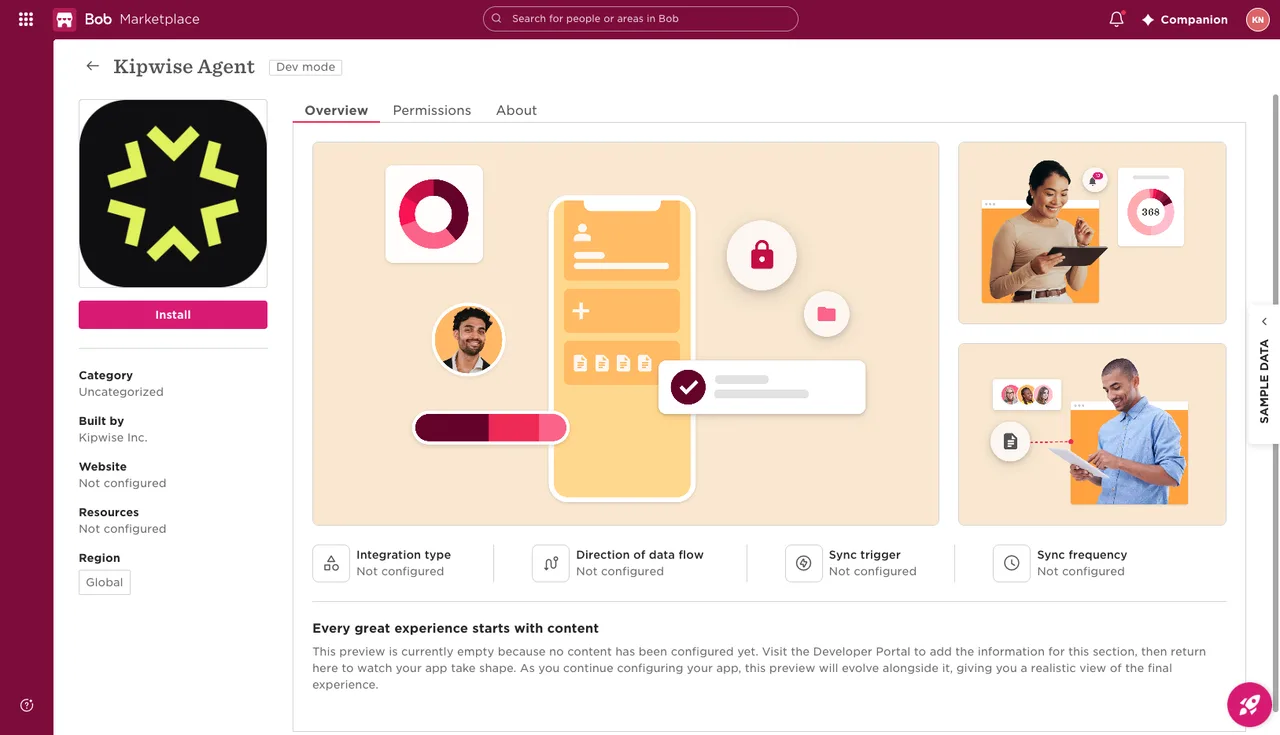
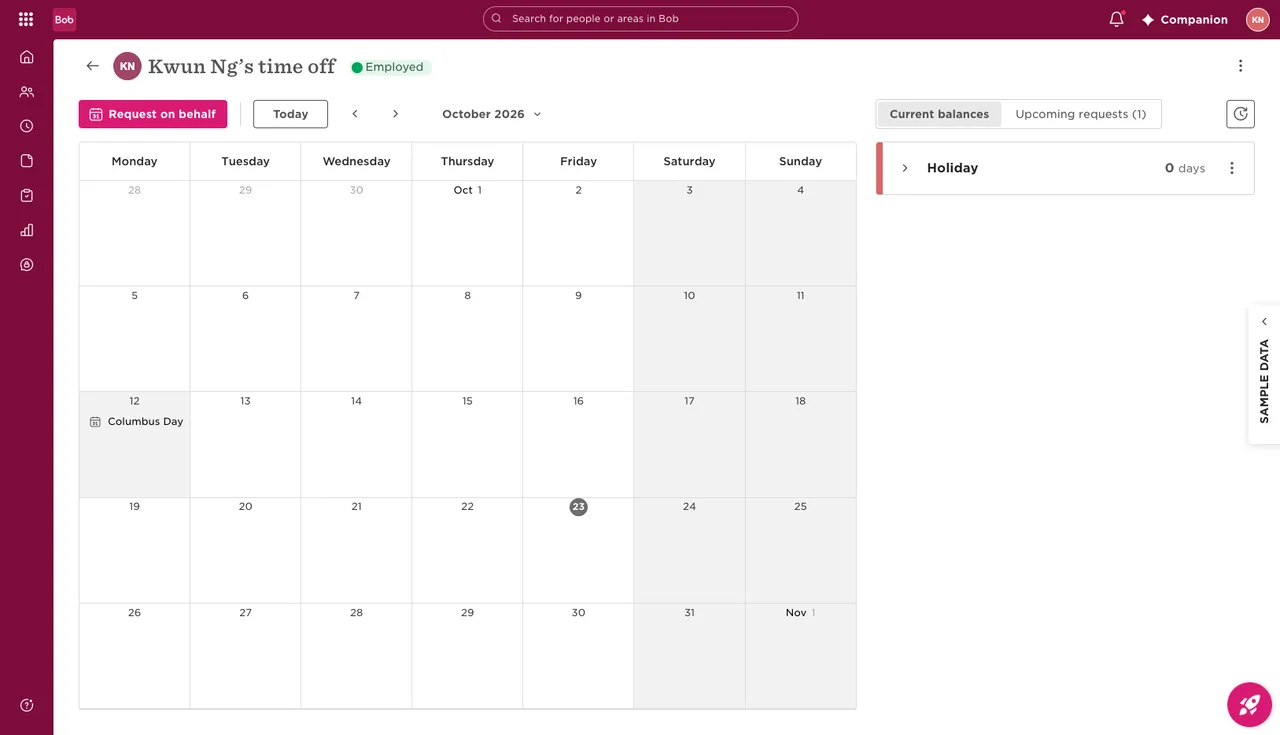
These screenshots show the app in Bob, Bob’s approval screen and the agent at work in Slack.
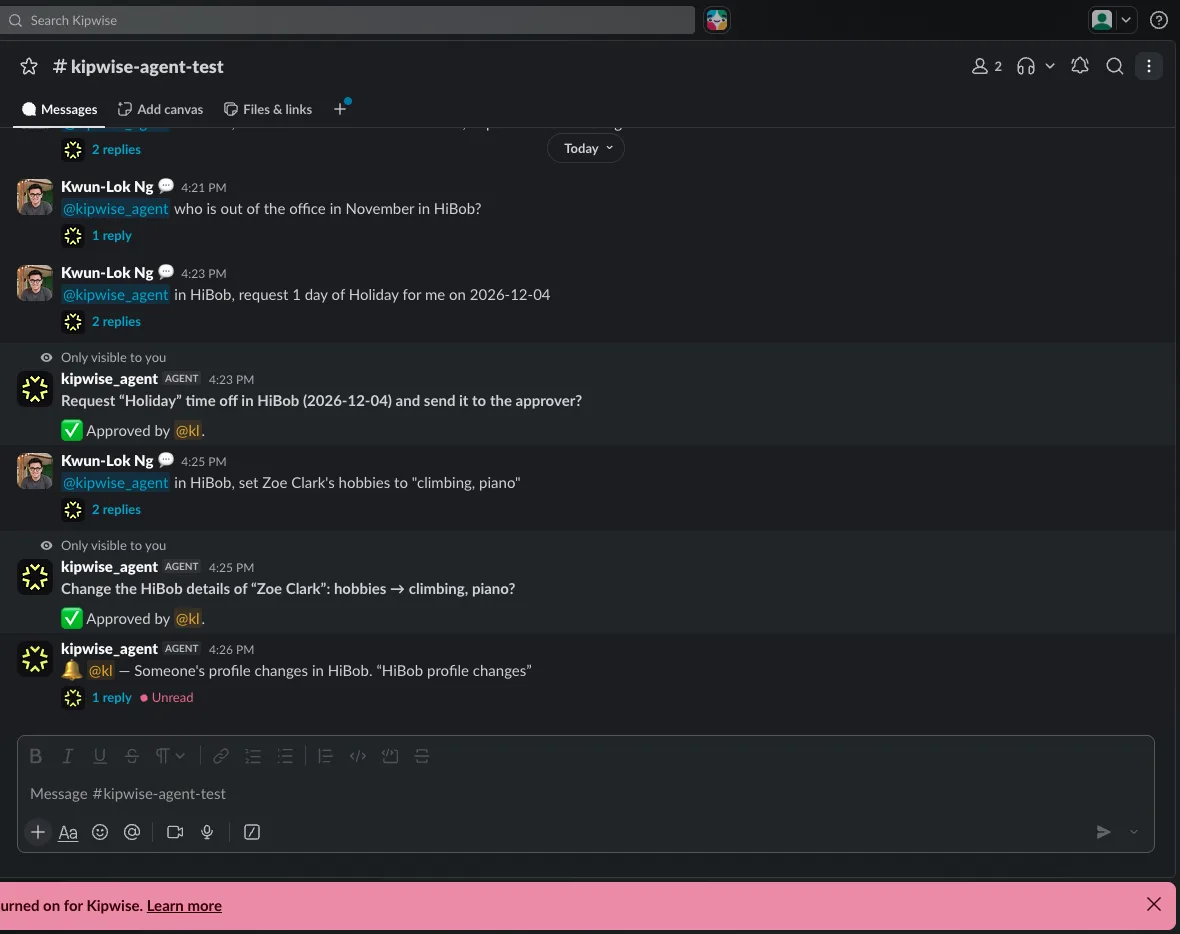
Watch the full setup and the main flows in the demo video (5 minutes).
6. Troubleshooting tips
| What you see | What it means | What to do |
|---|---|---|
| “Only a Kipwise team admin can connect HiBob: it is connected once for the whole workspace.” | The person who pressed Connect is not a Kipwise team admin. Nothing was connected. | Ask a Kipwise team admin to connect HiBob. |
| Bob shows “app.already.installed” after you press Connect | The app is still installed in Bob, for example from an earlier connection. Bob refuses a new connect while it is installed. | A Bob admin uninstalls the app in Bob (Marketplace, Manage apps). Then press Connect again. |
| “That HiBob company is already connected to another Kipwise workspace” | One Bob company can be connected to one Kipwise workspace. Nothing was connected here. | Disconnect HiBob in the other workspace first, or contact support. |
| “That HiBob company is already connected to another Kipwise workspace” | One Bob company belongs to one Kipwise workspace. | A team admin of the other workspace disconnects HiBob there, or contact support. |
| “HiBob’s sign-in did not say which company installed the app” | Bob’s reply did not name the company, so nothing was connected. | Connect HiBob again from chat. |
| “I can’t tell who you are in HiBob: there is no email address on your chat profile” | The agent matches people by email. | Add an email to your chat profile that matches your Bob work email. |
| “HiBob has no employee with the work email ... that this app may see” | The emails differ, you are not in Bob (for example a contractor), or you are outside the People data access chosen at install. | Ask a Bob admin to align the emails, or to reinstall the app with a wider People data access. |
| “HiBob refused that: the Kipwise Agent app was not given permission for it” | A permission was not granted at install, or the person is outside People data access. | Only a Bob admin can change this, by uninstalling and installing the app again. |
| “HiBob says that was not found” | It may not exist, may be outside People data access, or may belong to a Bob module your company has not bought (for example the job catalog needs Job catalog 2.0). | Check in Bob; reinstall with a wider People data access if needed. |
| “HiBob no longer accepts the Kipwise Agent app on this company’s account” | The app was uninstalled in Bob, or its sign-in was revoked. | A Kipwise team admin connects HiBob again with the Connect button the agent shows. |
| “HiBob refused to renew the Kipwise Agent app’s sign-in” | Either the app was uninstalled in Bob, or Kipwise’s own settings do not match the installation. The connection is kept for now. | If it stays like this, a Kipwise team admin connects HiBob again, then contact support. |
| “HiBob is limiting requests; try again in N seconds” | Bob’s own per-minute limits. | Wait and ask again. |
| The Approve card expired | Nothing was run. | Ask again; cards last 30 minutes. |
| A time off request was sent but the agent shows no request number | Bob does not return it. | Ask “who is out” for those dates to see it with its number. |
| You ask the agent to approve or decline a time off request | Approvers decide in Bob. | Use the Bob link the agent gives. |
| An automation stopped, “no HiBob connection” | The HiBob connection was removed or lost. | Reconnect HiBob, then set the automation up again. |
| An upload is refused as too large | Bob takes a document up to 5 MB. | Send a smaller file. |
7. Support contact info
- Email: support@kipwise.com
- Help center: https://support.kipwise.com
- Privacy policy: https://kipwise.com/privacy
- Terms of service: https://kipwise.com/terms-of-services
- Sub-processors: https://kipwise.com/subprocessors
- Data protection officer: dpo@kipwise.com
FAQs
Short answers for Bob admins.
Does each person connect their own Bob account?
No. One connection covers the whole company. A Kipwise team admin connects HiBob from Slack or Microsoft Teams and approves the app in Bob as a Bob admin.
Can the agent change anything in Bob without asking?
No. Every change waits for an Approve card, and only the person who asked can press Approve. Time off requests go to the usual approver in Bob and are never approved automatically.
Can the agent approve or decline a time off request?
No. Approvers decide in Bob. The agent gives them the link.
Which People data access should I choose?
All company. With All company, everyone who asks is recognised by their work email, and the company directory and “who is out” cover everyone. People outside a smaller group cannot be found.
How do I disconnect Bob?
A Kipwise team admin asks the agent to disconnect HiBob and approves the card. Kipwise deletes the stored access for the whole workspace. The app stays installed in Bob until a Bob admin uninstalls it there.
How much does Kipwise Agent cost?
Kipwise Agent is a separate paid add-on: $10 per user per month or $108 per user per year (USD, excluding tax), with a three-user minimum. It works with any Kipwise plan. See Kipwise pricing.